> For the complete documentation index, see [llms.txt](https://help.adalo.com/llms.txt). Markdown versions of documentation pages are available by appending `.md` to page URLs; this page is available as [Markdown](https://help.adalo.com/actions/notifications/scheduled-notifications/set-up-recurring-notifications.md).
# Set Up Recurring Notifications
For some use cases, you want a notification to repeat multiple times.
### Before You Begin
* Map out the User flow to ensure data is available
* Set up a Collection to track scheduled notifications
***
#### Examples of Recurring Notifications
* **Daily countdown:** Starting 1 week before event, send daily ("6 days away", "5 days away", etc.)
* **Reminder series:** 1 week before, 3 days before, 1 day before, on the day
* **Regular bookings:** Weekly reminders for recurring appointments
* **Subscription alerts:** Daily reminders starting 1 week before renewal
***
#### Create the Notification Record
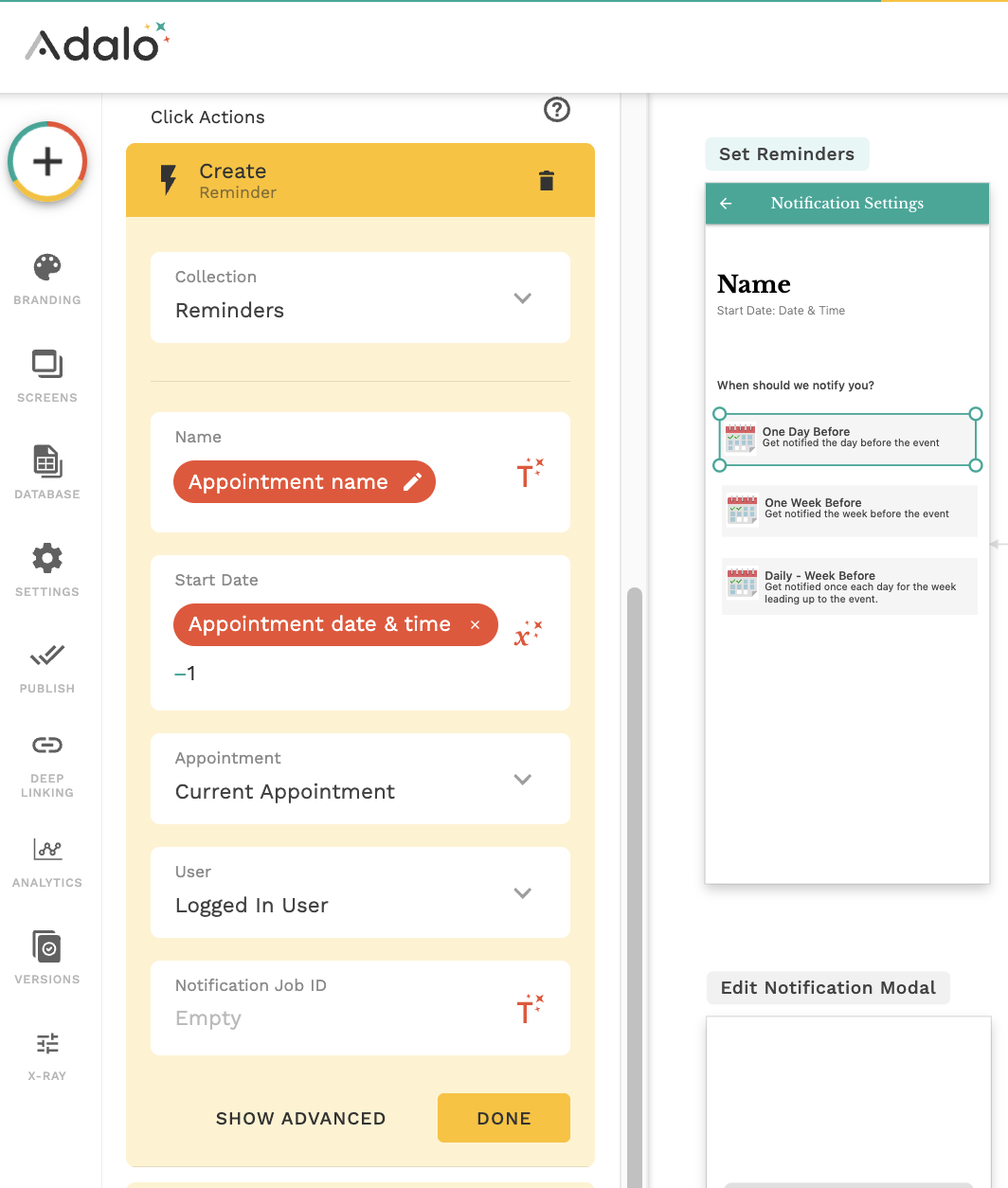
Add a **Create** action that creates a new record in your Notifications Collection.
**Field values:**
* **Name:** Reference the main record's name
* **Start Date:** The trigger date minus how many days/hours before you want the notification.
* Use negative numbers: `-14` = 2 weeks before, `-28` = 4 weeks before, `-7` = 1 week before
* **Related Appointment:** Link to the current record
* **User:** Who should receive it
* Or reference a related user if applicable
* **Notification Job ID:** Leave blank (you'll fill this in Step 3)
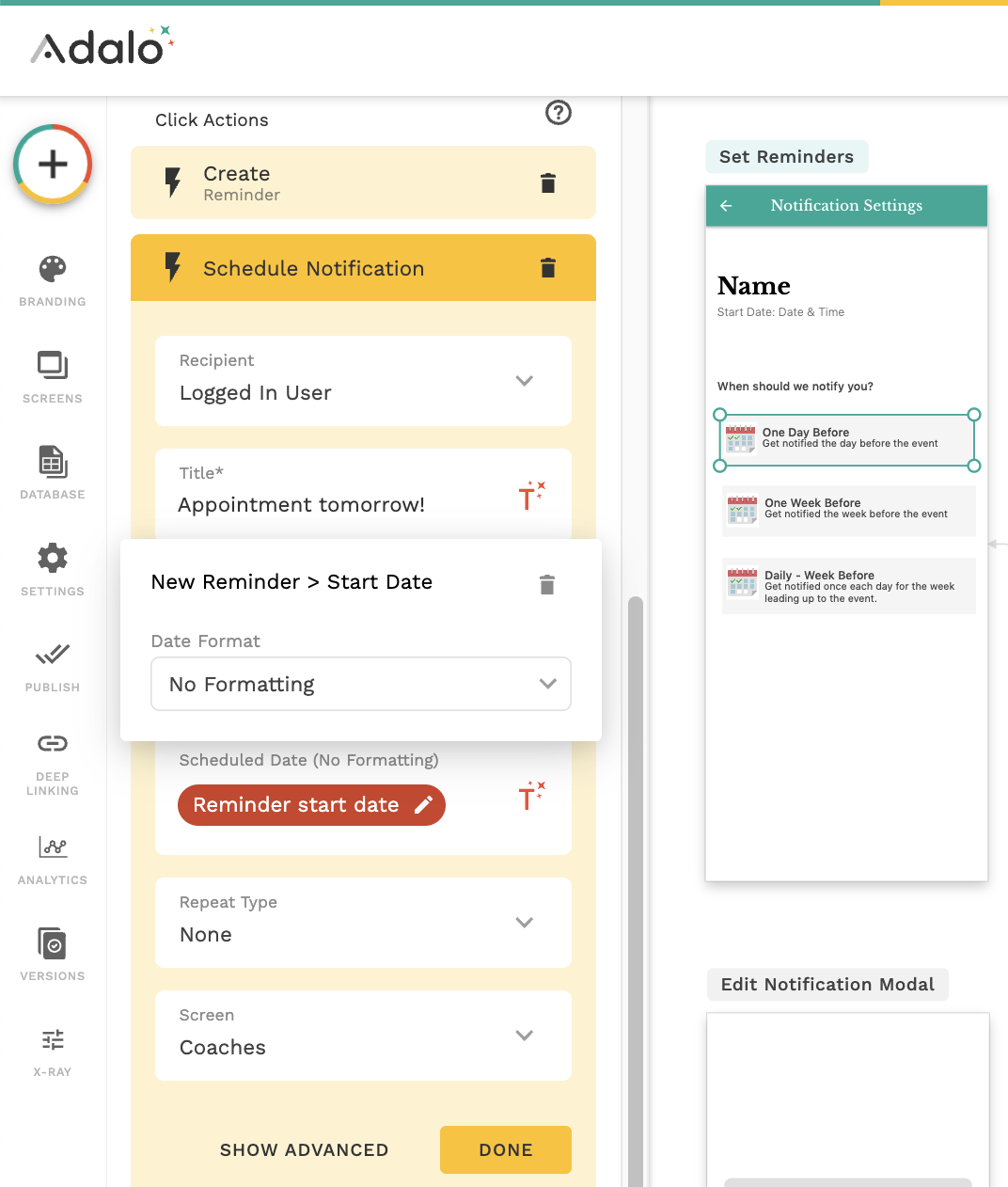
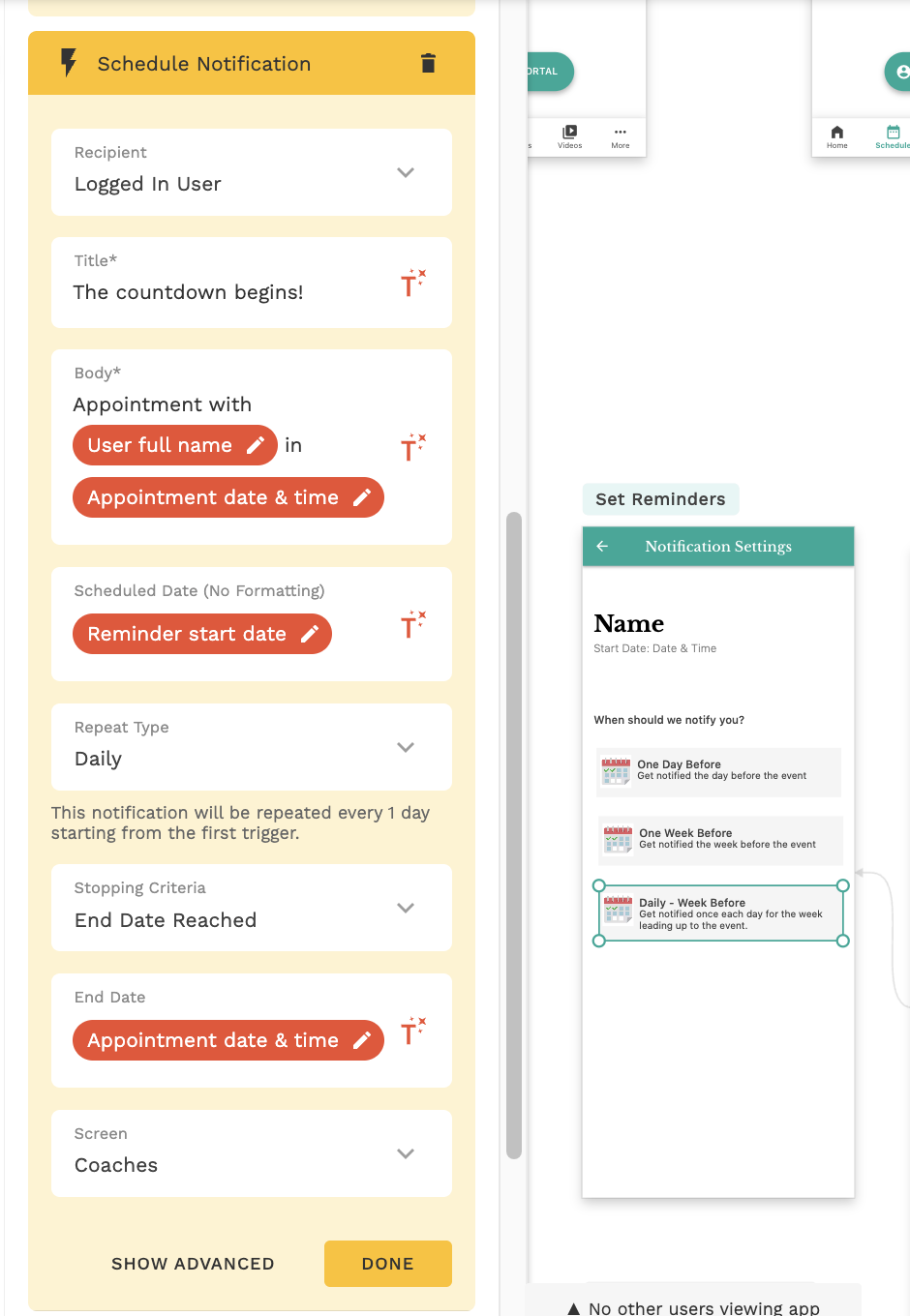
#### **Schedule Notification set up:**
* **Recipient:** The user who should receive it (usually the same user from Step 1)
* **Title:** What the notification is about
* **Body:** The message the user sees
* Include relevant details: what it's about, who it involves, timing context, etc.
* **Scheduling Date:** Use the date from the New Record created in Step 1
{% hint style="warning" %}
**Date Format:** ⚠️ **CRITICAL** You must change the date format:
1. Click the date format field (defaults to "relative")
2. Scroll to the bottom of the dropdown
3. Select **"No Formatting"**
This converts to the Unix timestamp Adalo requires.
{% endhint %}
* **Repeat Type:**
* Choose one:
* **Minute -** Send each minute
* **Daily** – Send every day
* **Weekly** – Send every week
* **Monthly** – Send every 30 days
* **Stopping Criteria:**
* **End Date Reached:** Will stop after selected date
* **End Date:** Date selected from Magictext will allow Notifications to automatically stop on the record's date (appointment day, due date, event date, etc.)
* **After number of times:** Will stop after number of notifications sent.
* **Number of times:** Integer
* **Target Screen:** Link to a relevant screen in your app.
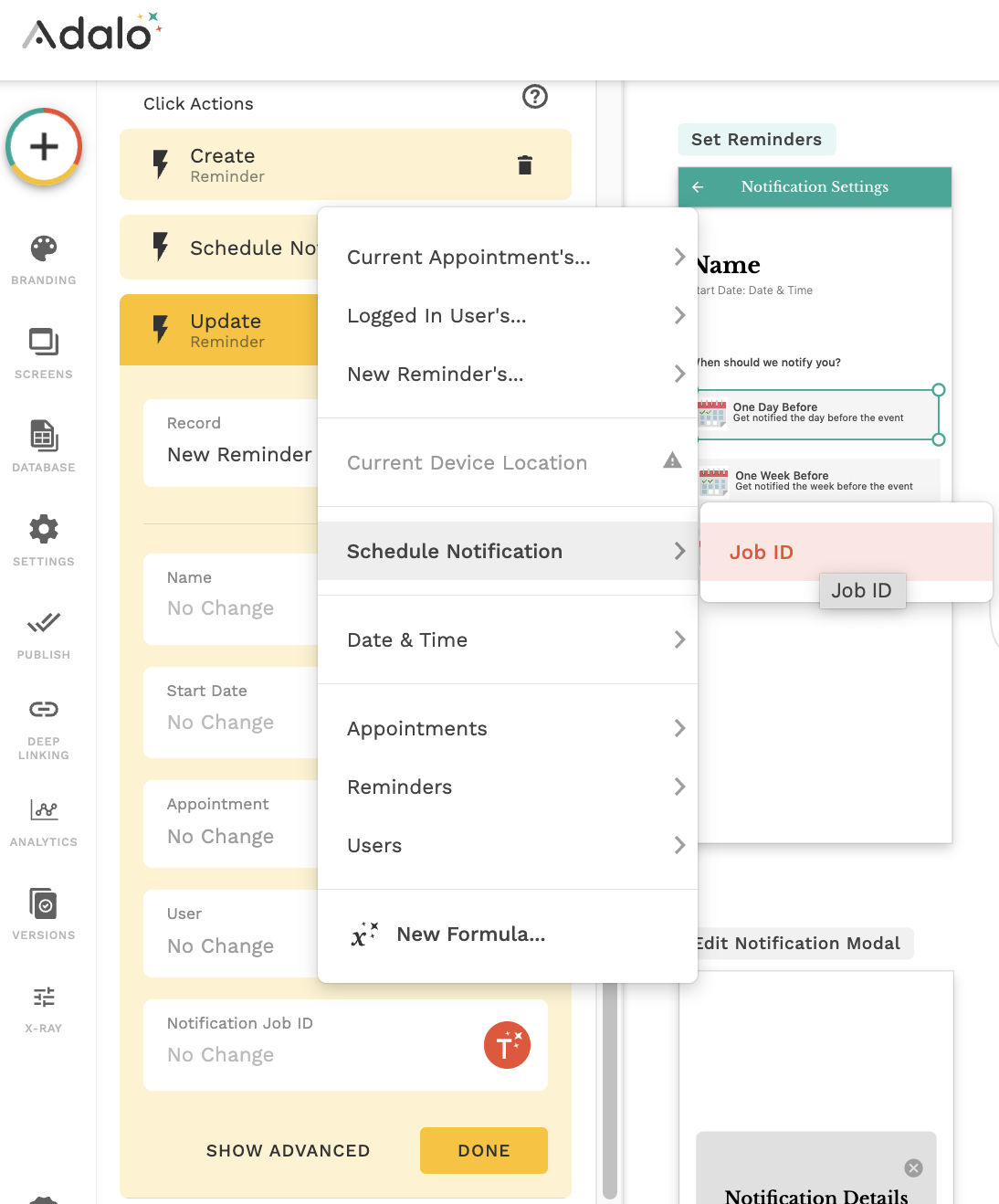
#### Update Notification Record to Store the Job ID
Add an **Update** action immediately after scheduling.
Update the notification record you just created:
**Why this matters:** The Job ID is Adalo's unique identifier for this scheduled notification. You need it later to cancel or modify the notification. It's only available right after scheduling, so capture it now.
---
# Agent Instructions
This documentation is published with GitBook. GitBook is the documentation platform designed so that both humans and AI agents can read, navigate, and reason over technical content effectively. Learn more at gitbook.com.
## Querying This Documentation
If you need additional information that is not directly available in this page, you can query the documentation by asking a question.
Perform an HTTP GET request on the following URL with the `ask` and `goal` query parameters:
```
GET https://help.adalo.com/actions/notifications/scheduled-notifications/set-up-recurring-notifications.md?ask=&goal=
```
`ask` is the immediate question: it should be specific, self-contained, and written in natural language.
`goal` is what the user is ultimately trying to achieve, the reason they need the answer. Sharing it helps GitBook give you a better, more relevant answer. A goal is most helpful when it describes the outcome the user wants rather than restating the question. For example, with `ask=how do I create an API token`, a goal like `automate deployments from our CI pipeline` lets GitBook tailor the answer to that use case.
The response will contain a direct answer to the question and relevant excerpts and sources from the documentation.
Use this mechanism when the answer is not explicitly present in the current page, you need clarification or additional context, or you want to retrieve related documentation sections.