> For the complete documentation index, see [llms.txt](https://help.adalo.com/llms.txt). Markdown versions of documentation pages are available by appending `.md` to page URLs; this page is available as [Markdown](https://help.adalo.com/adalo-account/account/how-to-set-up-two-factor-authentication-2fa-for-your-adalo-account.md).
# How to Set Up Two-Factor Authentication (2FA) for Your Adalo Account
Two-Factor Authentication (2FA) adds an extra layer of security to your Adalo account by requiring a verification code when you log in. Follow the steps below to set it up.
### Overview
Two-factor authentication adds a second layer of security to your Adalo account. Once enabled, logging in requires both your password and a time-based 6-digit code from an authenticator app on your phone.
2FA is configured per user at the account level — it is not a team-wide or app-level setting.
***
### Before You Begin
* Log in to your Adalo account.
* Download an authenticator app on your phone if you don't already have one. Adalo supports:
* **Google Authenticator** (iOS & Android)
* **Authy** (iOS & Android)
* Use official apps only. Third-party authenticator apps may work but are not officially supported.
***
### Walkthrough
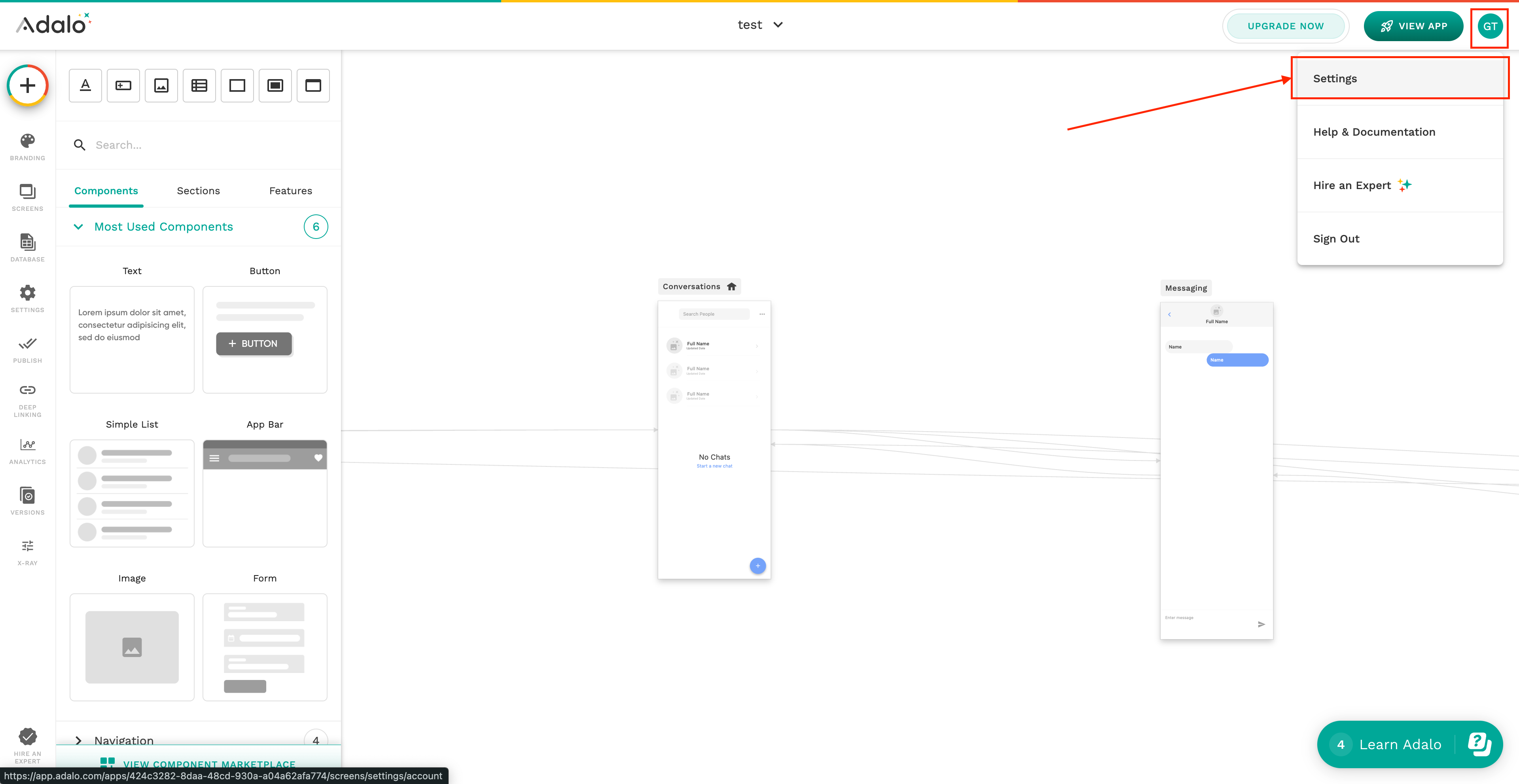
#### Open Your Account Settings
1. Log in to your Adalo account.
2. Click your **user icon** in the top-right corner.
3. Select **Settings** from the dropdown menu.
***
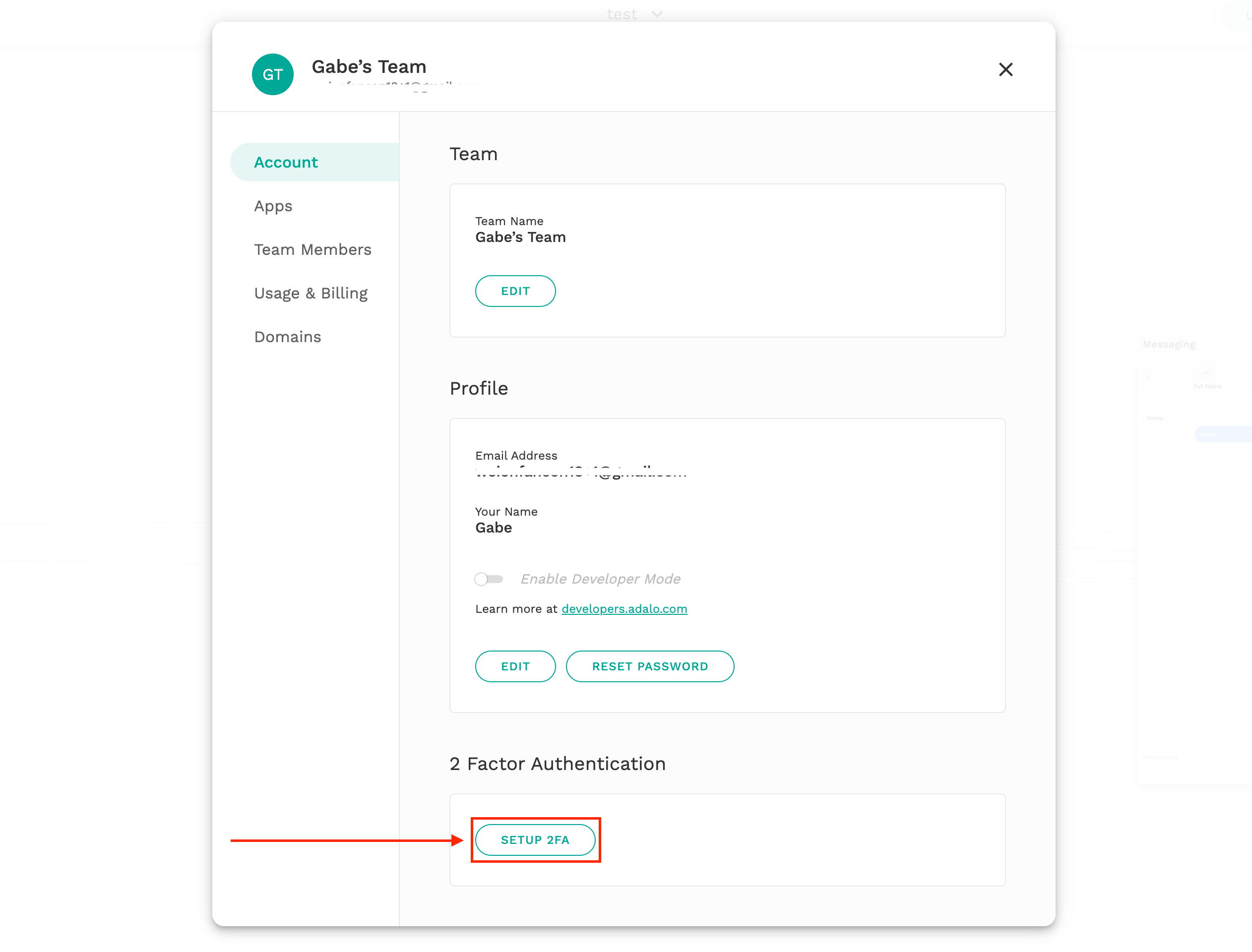
#### Go to 2FA Authentication Section
On the Settings page, locate the **2FA Authentication** section beneath your Team Profile. If 2FA is not enabled, click **Set Up 2FA**.
***
#### Install an Authentication App
You’ll need an authenticator app on your phone. Adalo supports:
* **Google Authenticator** (iOS & Android)
* **Authy** (iOS & Android)
Download and install one of these apps before continuing. Use official apps only.
***
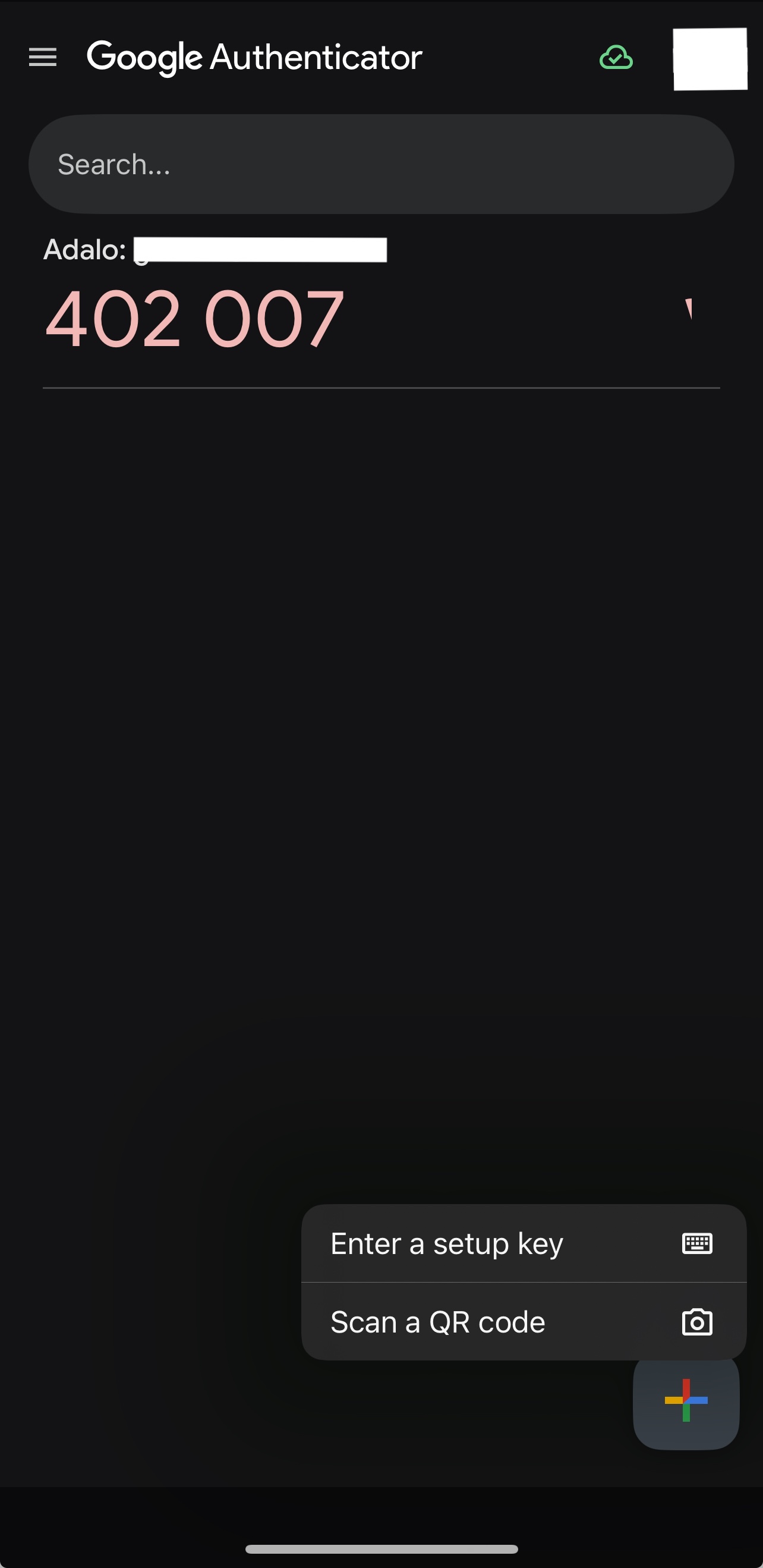
#### Add Adalo to Your Authenticator App
1. Open your authenticator app.
2. Tap the **+ (Add)** icon.
3. Choose one of the following:
* **Scan the QR code** shown in Adalo (recommended), or
* **Enter the secret key manually** into the app.
Once added, the app will generate a 6-digit code that refreshes every 30 seconds.
***
#### Verify and Activate 2FA
1. Enter the 6-digit code from your authenticator app into Adalo.
2. Click **Verify & Activate**.
🎉 That’s it, 2FA is now enabled! From this point forward, every login will require your password and a fresh code from your authenticator app.
***
#### What Happens Next?
From now on, every time you log in to your Adalo account:
1. Enter your email and password.
2. Open your authenticator app.
3. Enter the current 2FA code to complete login.
***
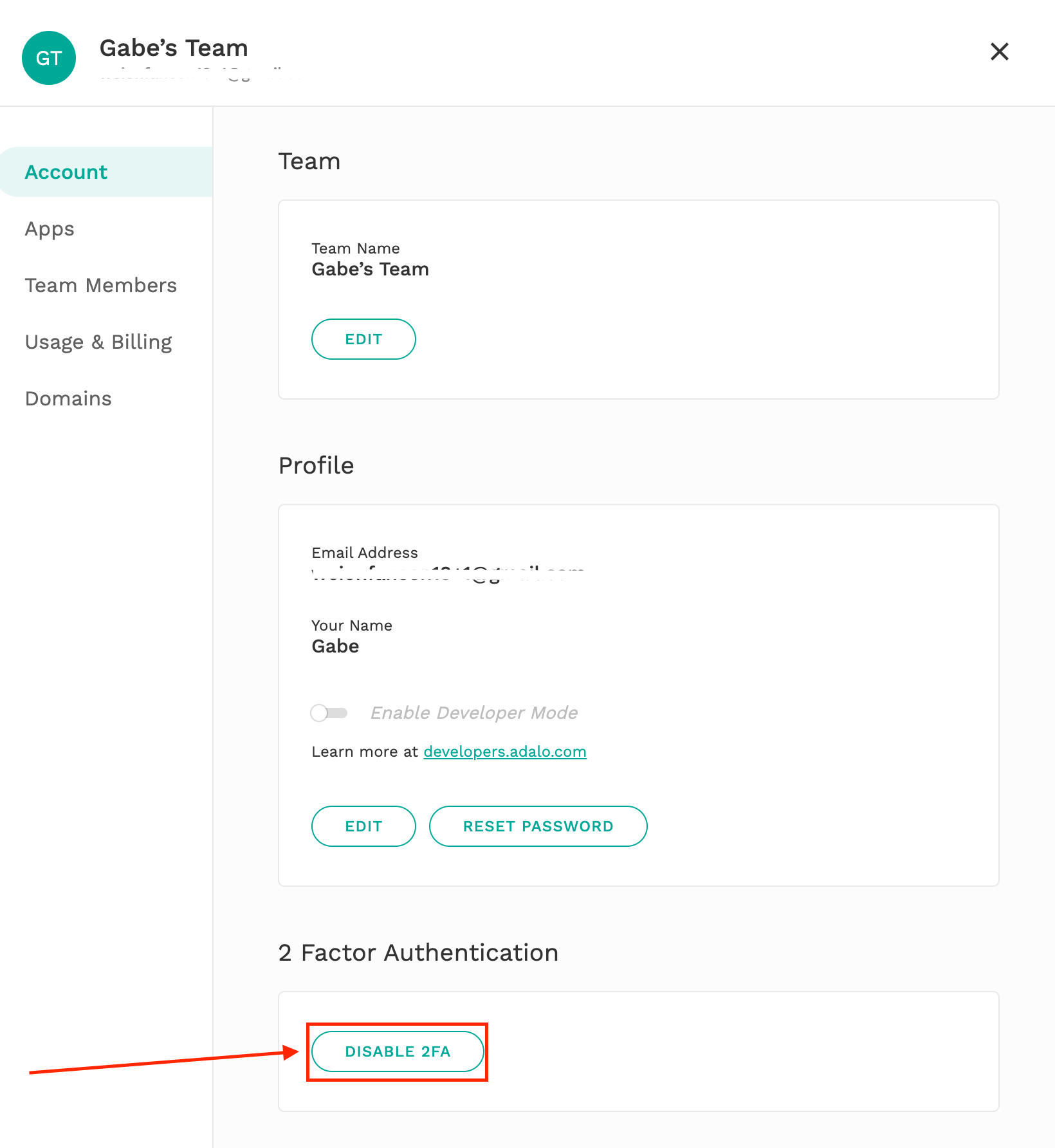
### **Disabling 2FA**
Go to **Account Settings** and turn off 2FA at any time, as long as you can log in. You can also reconfigure it from the same screen if you need to switch to a new device or authenticator app.
***
### **Troubleshooting**
**My 2FA code isn't working**
Time-based codes are sensitive to clock drift. If your code is being rejected:
1. Open your phone's **Date & Time** settings and make sure **Set Automatically** is turned on. Even being a minute off can cause codes to fail.
2. Wait for a fresh code to generate — don't reuse one that's about to expire.
3. Make sure you're entering the code for your **Adalo account** specifically, not a code for another service in your authenticator app.
If none of these steps work, try removing the Adalo entry from your authenticator app, disabling 2FA in Account Settings, and setting it up again from scratch.
**I changed my phone**
**If you can still log into your Adalo account:**
1. Go to **Account Settings** and disable 2FA.
2. Install your authenticator app on your new device.
3. Re-enable 2FA and scan the new QR code with your new device.
**If you can no longer log in**, contact [**Adalo Support**](https://info.adalo.com/submit-a-support-ticket) to recover access to your account.
> 💡 **Tip:** Some authenticator apps (like Google Authenticator and Authy) offer cloud backup or account transfer features. Enabling this before switching phones can save you from getting locked out.
**I lost my phone or no longer have access to my authenticator app**
Contact [**Adalo Support**](https://info.adalo.com/submit-a-support-ticket) and request help recovering your account. Be prepared to verify your identity — support may ask for details like your account email, app names, or billing information.
***
### Learn More
* Adalo does not provide backup codes during setup. If you lose access to your authenticator app and can't log in, account recovery requires contacting [**Adalo Support.**](https://info.adalo.com/submit-a-support-ticket)
* 2FA is per user, not per team. There is no way for a team admin to enforce 2FA across all team members.
* Only Google Authenticator and Authy are officially supported. Other TOTP-compatible apps may work but haven't been tested by Adalo.
---
# Agent Instructions
This documentation is published with GitBook. GitBook is the documentation platform designed so that both humans and AI agents can read, navigate, and reason over technical content effectively. Learn more at gitbook.com.
## Querying This Documentation
If you need additional information that is not directly available in this page, you can query the documentation by asking a question.
Perform an HTTP GET request on the following URL with the `ask` and `goal` query parameters:
```
GET https://help.adalo.com/adalo-account/account/how-to-set-up-two-factor-authentication-2fa-for-your-adalo-account.md?ask=&goal=
```
`ask` is the immediate question: it should be specific, self-contained, and written in natural language.
`goal` is what the user is ultimately trying to achieve, the reason they need the answer. Sharing it helps GitBook give you a better, more relevant answer. A goal is most helpful when it describes the outcome the user wants rather than restating the question. For example, with `ask=how do I create an API token`, a goal like `automate deployments from our CI pipeline` lets GitBook tailor the answer to that use case.
The response will contain a direct answer to the question and relevant excerpts and sources from the documentation.
Use this mechanism when the answer is not explicitly present in the current page, you need clarification or additional context, or you want to retrieve related documentation sections.