> For the complete documentation index, see [llms.txt](https://help.adalo.com/llms.txt). Markdown versions of documentation pages are available by appending `.md` to page URLs; this page is available as [Markdown](https://help.adalo.com/component-basics/marketplace-components/bubble-scatter-chart.md).
# Bubble / Scatter Chart
The Bubble / Scatter Chart component allows you to visualize numeric data from a collection on an X and Y axis.
*Skill Level: Beginner*
## Before You Begin
* Know about [MagicText](/component-basics/inserting-dynamic-text.md), and [Actions](https://help.adalo.com/action-basics/action-basics).
* You'll need a collection with at least 2 records and at least two Number fields (for X and Y values). A third Number field is needed if you plan to use bubble sizing.
***
## Overview
The Bubble / Scatter Chart component visualizes numeric data from your collections as an interactive chart. Each record in your collection becomes a data point on the chart, positioned by two Number fields and, optionally, sized by a third.
It supports two chart types:
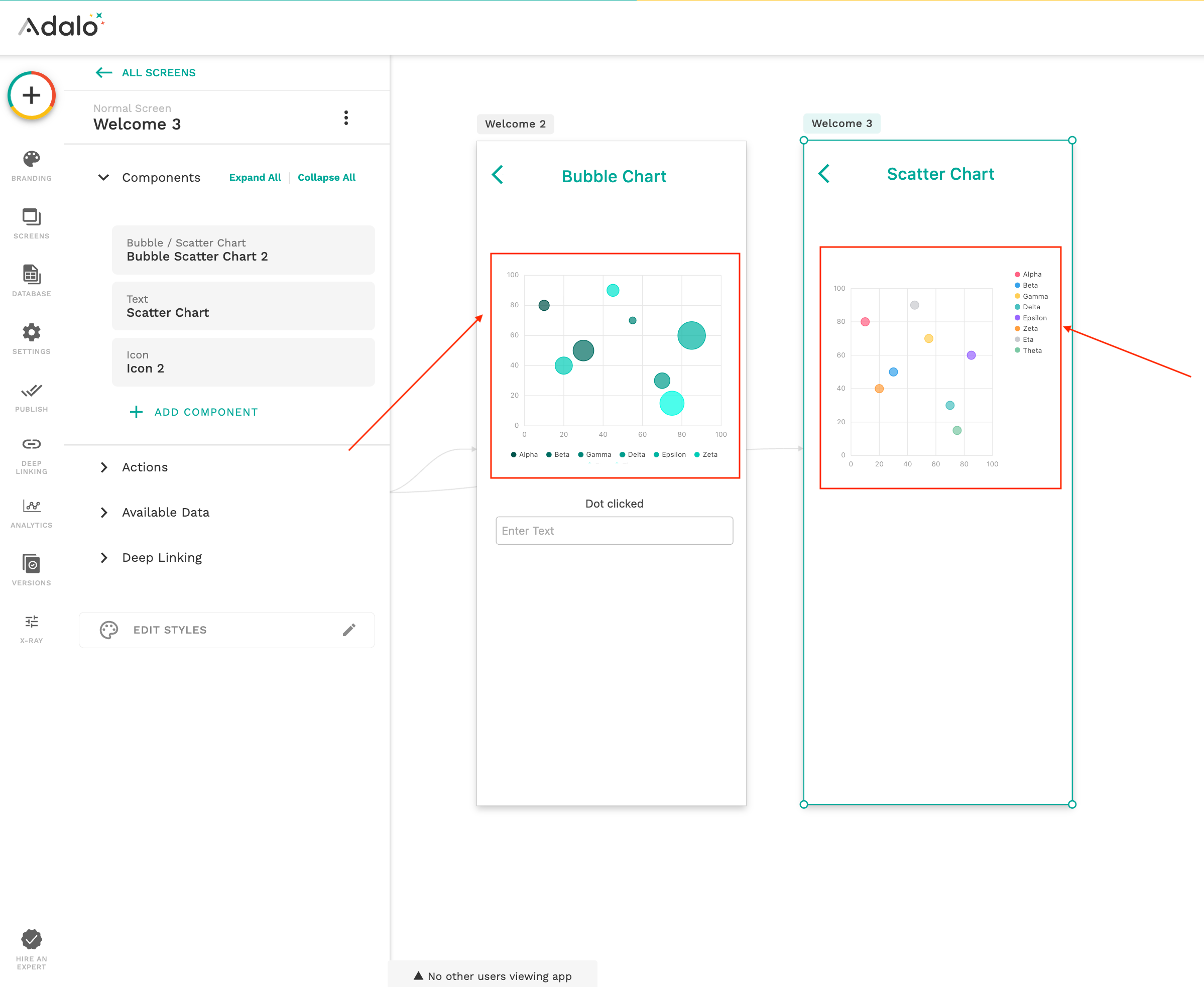
**Bubble Chart:** Each data point is displayed as a circle. The X and Y positions represent two numeric values, and the bubble size represents a third. Use this when you want to compare three dimensions of data at once.
**Scatter Plot:** Each data point is displayed as a fixed-size dot. Only X and Y values are used. Use this for simpler two-variable comparisons.
This component is useful for dashboards, comparisons, and visual data analysis. It does not modify your data. It reads from your collection and renders it visually.
When first added to a screen, the chart displays placeholder data so you can preview the layout and styling. Once connected to a collection with valid records, it automatically switches to real data.
***
## How to Use
### Adding the Component
* Drag the **Bubble / Scatter Chart** component onto your screen.
* When first added, the chart displays placeholder data so you can preview the layout and styling.
* Once connected to a collection with valid records, the chart automatically displays real data.
### Connecting Your Data
#### What Data to Display
Select the collection that contains the data you want to visualize.
Each record becomes one bubble or dot.
* X Value: Select a Number field for the horizontal (X-axis) position.
* Y Value: Select a Number field for the vertical (Y-axis) position.
* Size Value (**Bubble Chart Only**): Select a Number field that determines bubble size. Larger values produce larger bubbles.
* Bubble Label: Select a Text field used for either Tooltips or Legend entries.
#### Chart Type
* Bubble Chart
* Scatter Plot
Additional options:
* **Dot Size** (Scatter only)
* **Min / Max Bubble Size** (Bubble only)
### Choose Your Colors
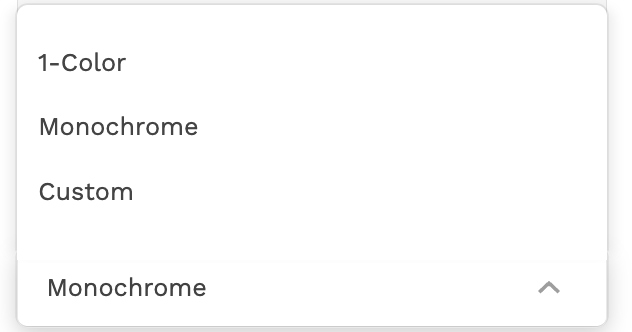
#### Color Mode
* 1-Color
* Monochrome
* Custom (uses hex codes from your collection)
If using Custom mode, your field must contain valid hex values:
```
#FF5733
```
### Axis & Grid
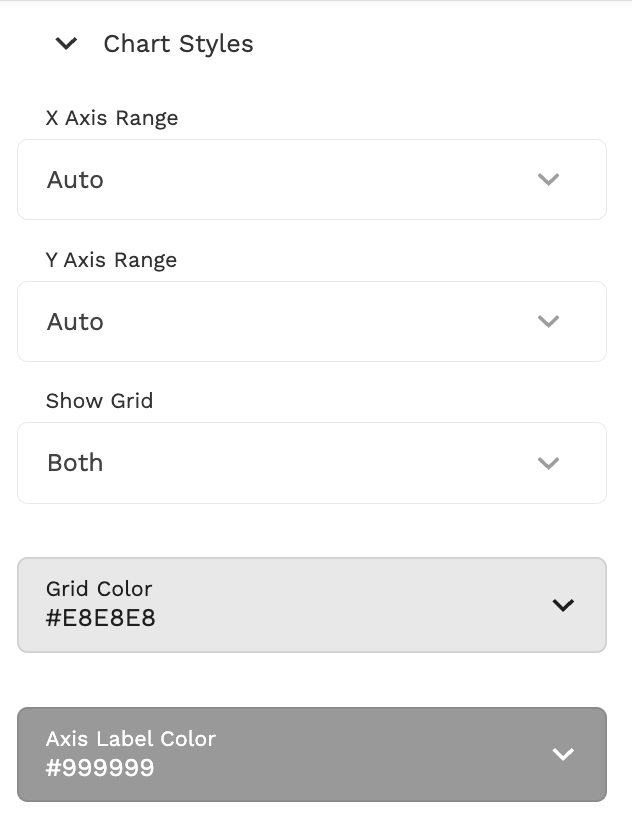
* Set **X Axis Range** and **Y Axis Range** to Auto or Manual.
* Enable or disable grid lines.
* Show or hide axis labels.
If bubbles are missing, switch axis ranges to **Auto** to test.
### Tooltips & Legend
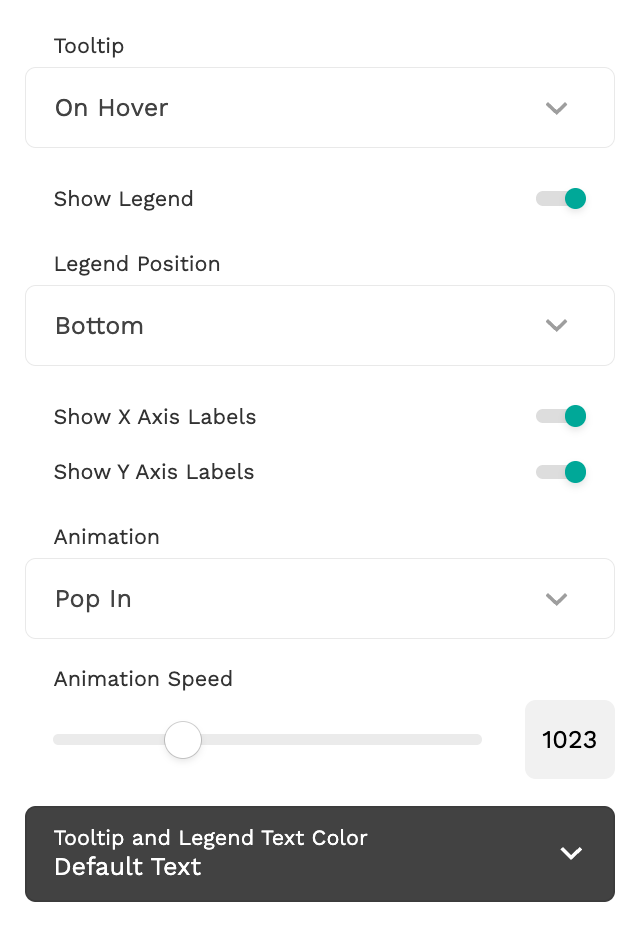
* Choose when tooltips appear: On Hover, Always, or None.
* Toggle **Show Legend** on or off.
* Set legend position.
On mobile, tap a bubble to show its tooltip.
### Interaction
* Choose **Action Trigger** behavior.
* Add a **Bubble Click Action** to make bubbles interactive.
## Troubleshooting
**Only placeholder data appears**
Make sure:
* Your collection has at least 2 records.
* X and Y fields are Number fields.
* Records are not empty.
**No bubbles are showing**
Check:
* X and Y are mapped to Number fields.
* Manual axis ranges include your data values.
* Size Value (Bubble mode) is mapped correctly.
Switch the axis range to **Auto** to test.
**Custom colors are not working**
Ensure:
* Values start with `#`
* They are valid hex codes (e.g. `#FF5733`)
* Named colors like `red` are not used
**Bubbles overlap**
Try:
* Lowering Bubble Opacity
* Reducing Max Bubble Size
* Filtering your collection
### Still Need Help?
If needed, contact [**Adalo Support**](https://info.adalo.com/submit-a-support-ticket) and include a screenshot of your settings, your collection field types, and a short description of the issue
---
# Agent Instructions
This documentation is published with GitBook. GitBook is the documentation platform designed so that both humans and AI agents can read, navigate, and reason over technical content effectively. Learn more at gitbook.com.
## Querying This Documentation
If you need additional information that is not directly available in this page, you can query the documentation by asking a question.
Perform an HTTP GET request on the following URL with the `ask` and `goal` query parameters:
```
GET https://help.adalo.com/component-basics/marketplace-components/bubble-scatter-chart.md?ask=&goal=
```
`ask` is the immediate question: it should be specific, self-contained, and written in natural language.
`goal` is what the user is ultimately trying to achieve, the reason they need the answer. Sharing it helps GitBook give you a better, more relevant answer. A goal is most helpful when it describes the outcome the user wants rather than restating the question. For example, with `ask=how do I create an API token`, a goal like `automate deployments from our CI pipeline` lets GitBook tailor the answer to that use case.
The response will contain a direct answer to the question and relevant excerpts and sources from the documentation.
Use this mechanism when the answer is not explicitly present in the current page, you need clarification or additional context, or you want to retrieve related documentation sections.