> For the complete documentation index, see [llms.txt](https://help.adalo.com/llms.txt). Markdown versions of documentation pages are available by appending `.md` to page URLs; this page is available as [Markdown](https://help.adalo.com/component-basics/marketplace-components/qr-and-barcode-generator.md).
# QR & Barcode Generator
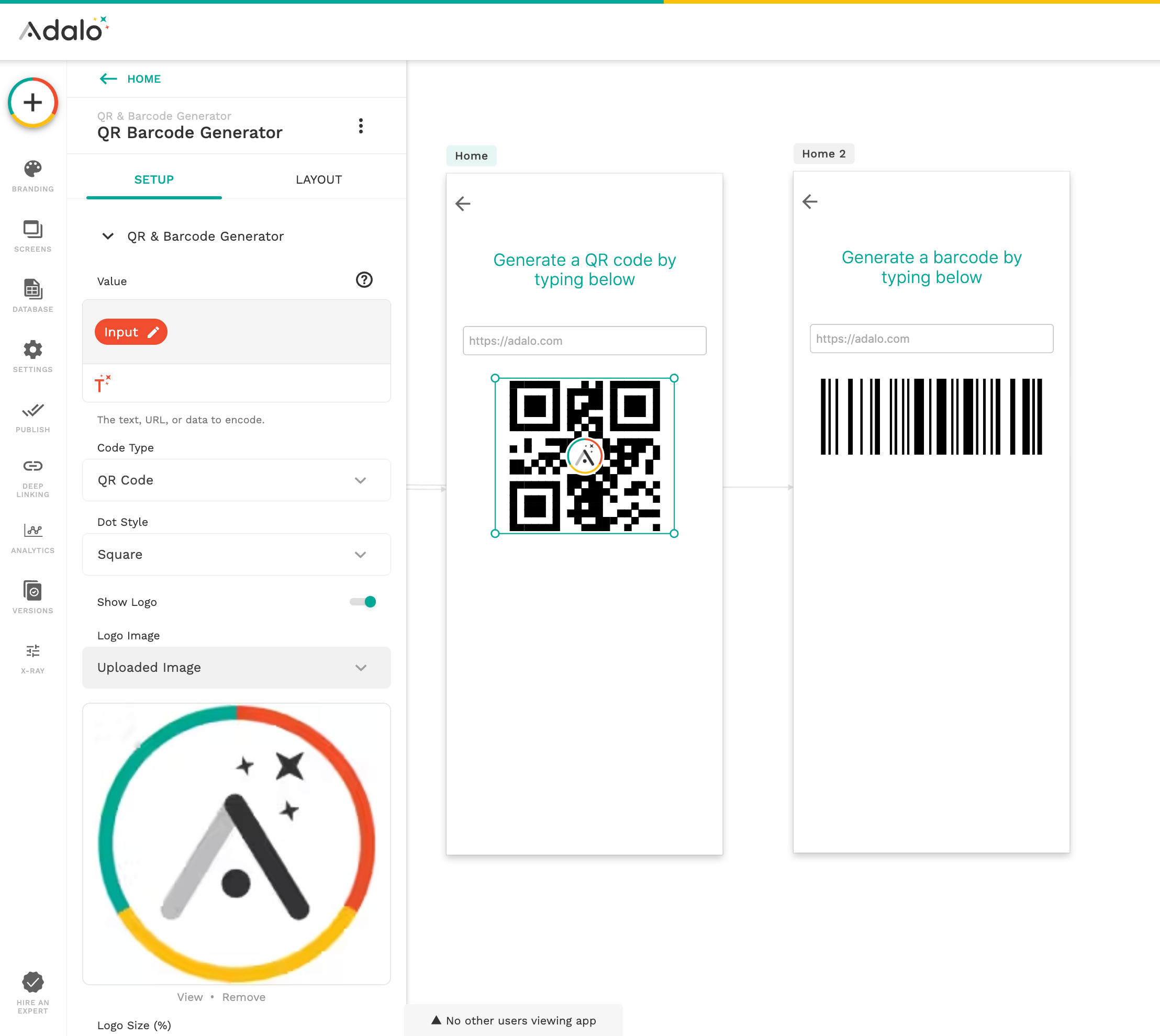
The QR & Barcode Generator component creates scannable QR codes and barcodes directly inside your app.
*Skill Level: Beginner*
## Before You Begin
* Know about [MagicText](https://help.adalo.com/component-basics/inserting-dynamic-text) and [Actions](https://help.adalo.com/action-basics/action-basics).
* Choose the Correct Code Type. Different barcode formats support different types of values.
## Overview
The **QR & Barcode Generator** component creates scannable QR codes and barcodes directly inside your app. It generates the code from a value you provide, such as text, a URL, or a product number.
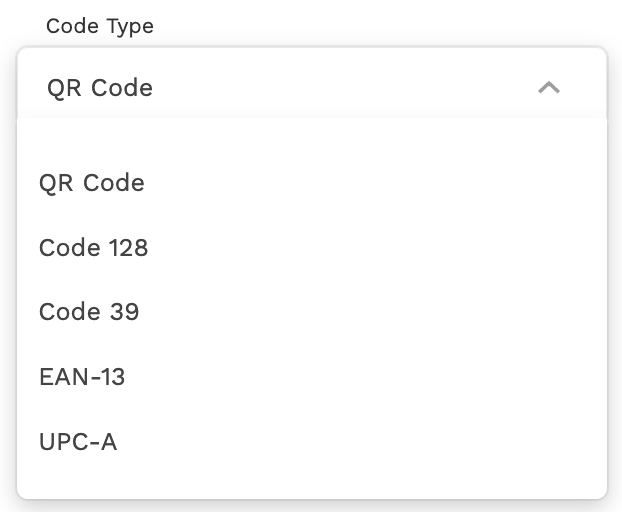
The component supports five code types:
* QR Code, Code 128, Code 39, EAN-13, and UPC-A
QR codes can be customized with different dot styles and an optional logo overlay. Barcodes can optionally display the encoded value as text below the bars.
{% hint style="warning" %}
It does not modify your data. It simply reads the value you provide and renders a scannable code.
{% endhint %}
***
## Some Common Use Cases
The **QR & Barcode Generator** component can be used in many types of apps. Some common examples include:
* **Product packaging and inventory:** Generate **EAN-13** or **UPC-A** barcodes for product labels, shelf tags, or inventory management screens.
* **Shareable links:** Encode a website URL, deep link, or social profile as a **QR code** that users can scan with their phone camera.
* **Branded QR codes:** Add your company logo to the center of a QR code for marketing materials, business cards, or event check-ins.
* **Wi-Fi sharing:** Encode Wi-Fi credentials in a QR code so users can connect to a network by scanning instead of entering the password manually.
* **Receipts and tickets:** Display **Code 128** or **Code 39** barcodes on digital receipts, tickets, or passes for quick scanning at entry points.
***
## How to Use
### Add & Configure the Component
* Drag **QR & Barcode Generator** onto your screen.
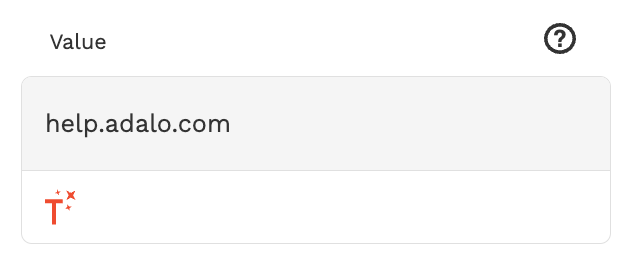
* Enter or bind the **Value** you want to encode. You can also use **Magic Text** to bind it to a database field, such as:
* Product barcode, user profile link, ticket ID, website URL
* Choose the **Code Type:** The component will automatically generate the code.
Refer to the table below to help choose the appropriate code type for your use case.
| Code Type | Accepts | Example |
| --------- | ----------------------------------------------- | ------------------- |
| QR Code | Text, URLs, or other data | `https://adalo.com` |
| Code 128 | Letters, numbers, and symbols | `ORD-102938` |
| Code 39 | Uppercase letters, numbers, and limited symbols | `ORDER123` |
| EAN-13 | 13-digit product numbers | `5901234123457` |
| UPC-A | 12-digit retail numbers | `036000291452` |
***
### Appearance
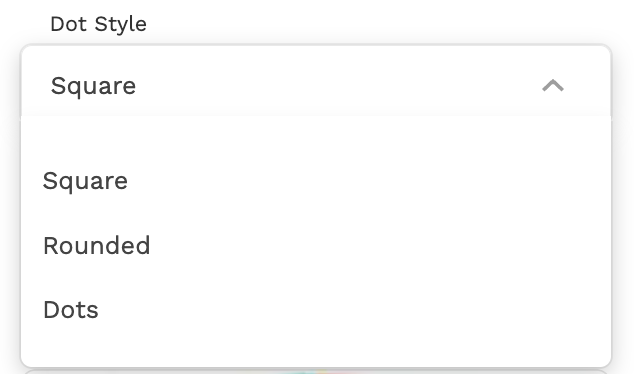
**QR Code Settings** Controls the shape of the QR modules from one of the 3 options:
* Square
* Rounded
* Dots
**Show Logo:** Adds a logo image in the center of the QR code.
When enabled, you can configure:
* Logo Image, logo Size, logo Background, logo Padding, and logo Border Radius
The logo size is automatically limited to keep the QR code scannable.
**Barcode Settings** (Visible for **Code 128, Code 39, EAN-13, UPC-A**)
**Show Text Below:** Displays the encoded value as text beneath the barcode.
{% hint style="info" %}
Large logos may prevent some scanners from reading the QR code. Always test after adding a logo.
{% endhint %}
***
### Choosing Your Colors
**Padding:** Adds space around the code.
**Foreground Color:** Color of the QR modules or barcode bars. Default: `#000000`
**Background Color:** Color behind the code. Default: `#FFFFFF`
For best results, use a strong contrast between these colors.
{% hint style="info" %}
QR codes and barcodes require a strong contrast to scan reliably. The component limits logo size automatically, but complex logos or low-contrast colors may still cause issues. Always test your code with a real scanner.
{% endhint %}
***
### Set Up Your Action
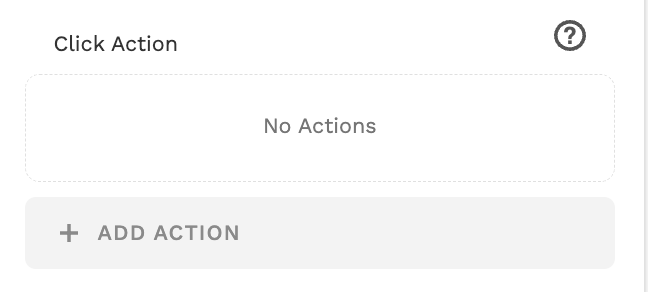
**Click Action:** Add an action that runs when a user taps the QR code or barcode.
***
## Learn More
* **EAN-13 and UPC-A accept digits only:** These formats only support numeric values. Non-numeric characters are removed automatically. If the value is shorter than required, zeros are added to the end, and the final check digit is calculated automatically.
* **Code 39 supports a limited character set:** Supported characters include uppercase letters **A–Z**, numbers **0–9**, and the symbols `- . $ / + %` and space. Lowercase letters are automatically converted to uppercase, and unsupported characters are removed.
* **Long values create dense QR codes:** Very long text produces QR codes with many small modules. If the component is displayed at a small size, scanners may struggle to read it. Shortening the value or increasing the component size can improve reliability.
***
### Still Need Help?
If needed, contact [**Adalo Support**](https://info.adalo.com/submit-a-support-ticket) and include A screenshot of your component settings, the value you are encoding, and the code type you selected.
---
# Agent Instructions
This documentation is published with GitBook. GitBook is the documentation platform designed so that both humans and AI agents can read, navigate, and reason over technical content effectively. Learn more at gitbook.com.
## Querying This Documentation
If you need additional information that is not directly available in this page, you can query the documentation by asking a question.
Perform an HTTP GET request on the following URL with the `ask` and `goal` query parameters:
```
GET https://help.adalo.com/component-basics/marketplace-components/qr-and-barcode-generator.md?ask=&goal=
```
`ask` is the immediate question: it should be specific, self-contained, and written in natural language.
`goal` is what the user is ultimately trying to achieve, the reason they need the answer. Sharing it helps GitBook give you a better, more relevant answer. A goal is most helpful when it describes the outcome the user wants rather than restating the question. For example, with `ask=how do I create an API token`, a goal like `automate deployments from our CI pipeline` lets GitBook tailor the answer to that use case.
The response will contain a direct answer to the question and relevant excerpts and sources from the documentation.
Use this mechanism when the answer is not explicitly present in the current page, you need clarification or additional context, or you want to retrieve related documentation sections.