QR and Barcode Reader
The QR & Barcode Reader component allows users to scan QR codes and barcodes directly inside their app.
Skill Level: Intermediate
Before You Begin
Overview
The QR & Barcode Reader component allows your app to scan QR codes and barcodes using the device camera. It detects and decodes codes in real time and exposes the scanned data so you can display it, save it to your database, or trigger actions.
The component supports 11 code formats :
QR Code, Data Matrix, Aztec, PDF417, EAN-13, EAN-8, UPC-A, UPC-E, Code 128, Code 39, and ITF.
You can choose which formats to scan depending on your use case.
The scanner works on mobile devices using the device camera and on web apps using the computer webcam.
On native platforms (iOS/Android), scanning uses react-native-vision-camera for high-performance frame processing. On the web, it uses the ZXing browser library, which may result in slightly slower scanning.
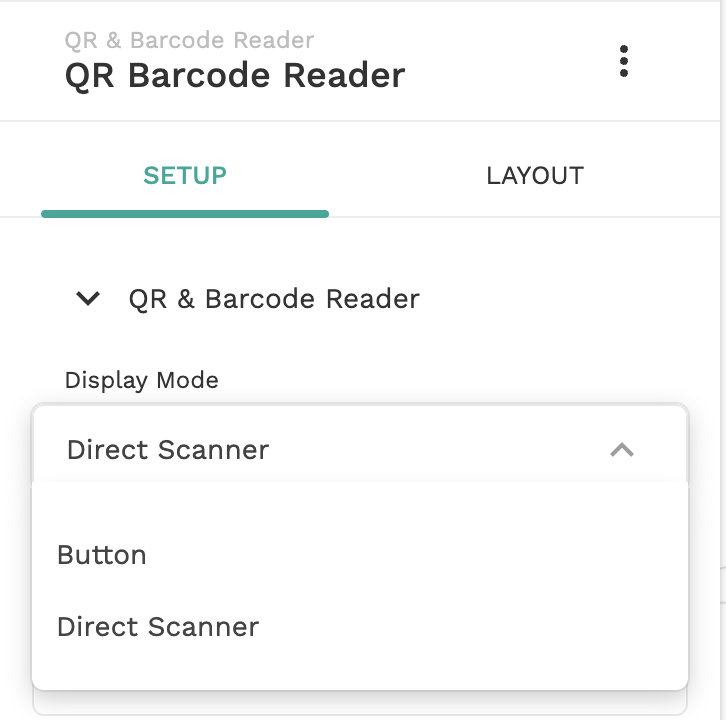
The component provides two display modes:
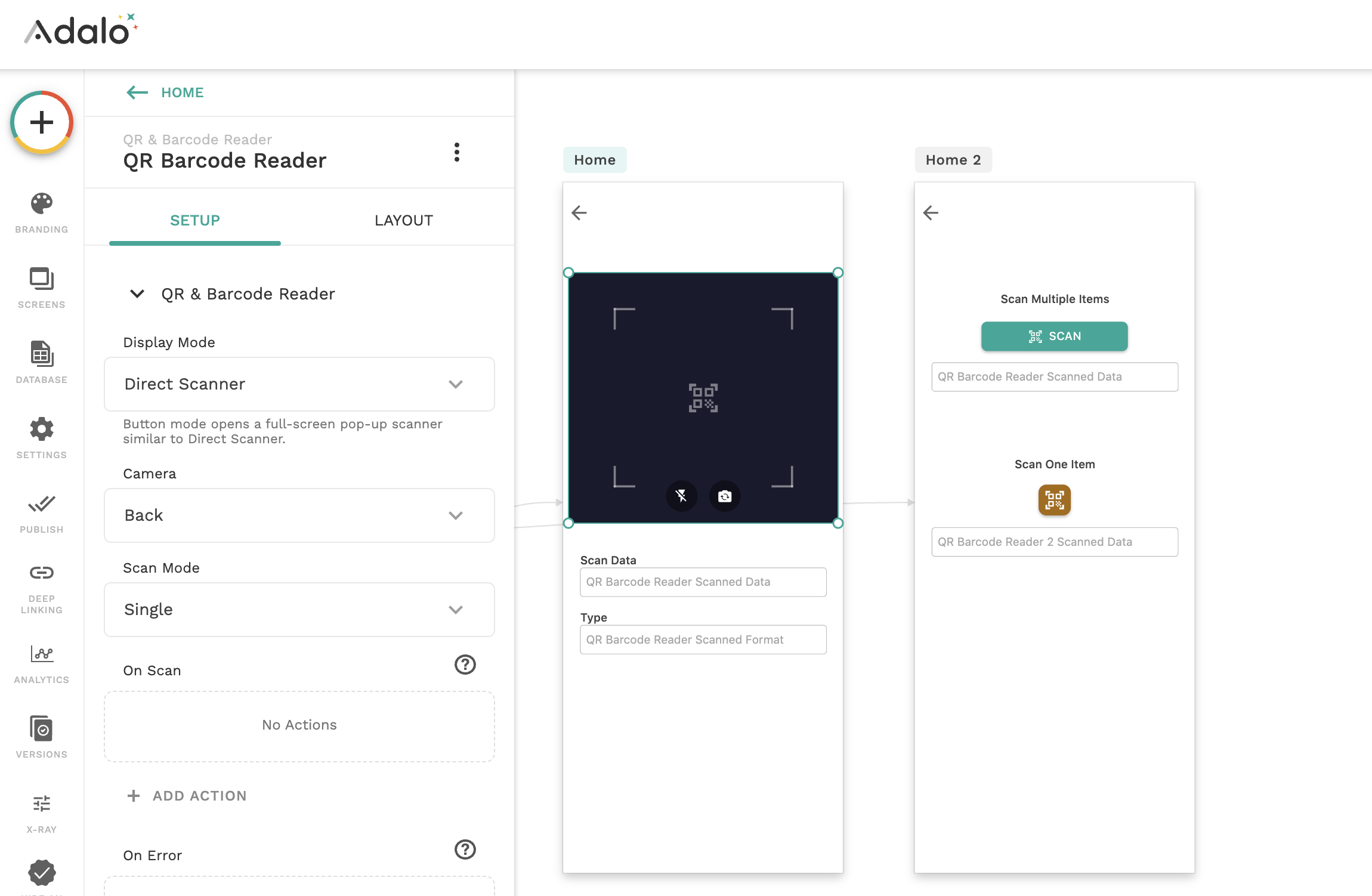
Direct Scanner Embeds the live camera feed directly on the screen with a scan frame and optional overlay elements. This is ideal for dedicated scanning screens.
Button Mode Displays a button that opens a full-screen scanner when tapped. This works well when scanning is an occasional action in your app.
When a code is detected, the scanned data and its format are returned as output values. These values can be saved to your database, displayed on screen, or used to trigger other actions.
The component also includes a results banner to display the scanned data, along with separate actions for handling successful scans and errors.
Some Common Use Cases
The QR & Barcode Reader component can be used in many types of apps. Some common examples include:
Warehouse and inventory management Scan product barcodes such as EAN-13, UPC-A, or Code 128 to look up items, update stock levels, or record shipments.
Event check-ins Scan QR codes on digital or printed tickets to check in attendees at events or conferences.
Retail point-of-sale systems Allow staff to scan product barcodes to quickly add items to a cart or invoice.
Asset tracking Attach QR codes to equipment and scan them to view maintenance records, location history, or ownership information.
Document and ID verification Scan PDF417 or Data Matrix codes on IDs or official documents to extract encoded information.
How to Use
Add & Configure the Component
Drag the QR & Barcode Reader component onto your screen.

Select how the scanner appears in your app.

Select which camera the scanner should use by default.
Choose the Scan mode, this controls how the scanner behaves after detecting a code.
Continuous : Keeps scanning and triggers the "On Scan" action for every detected code.
Single : Stops scanning after the first successful scan.
Pause (3s) : Pauses scanning for 3 seconds after each scan before continuing. This helps prevent duplicate scans.
In Continuous Scan mode, the same code may be detected multiple times per second. If the On Scan action writes to a database, consider using Pause mode (3-second cooldown) or Single mode to prevent duplicate entries.
Select the Scan formats, choose which code formats the scanner should detect. Refer to the table below to help choose the appropriate formats for your use case.
Data Matrix
Industrial labels
DMX-239482
Aztec
Boarding passes, transit tickets
AZT-92831
PDF417
Driver's licenses and IDs
DL12345678
EAN-13
Retail product barcodes
5901234123457
EAN-8
Small product packaging
96385074
UPC-A
Retail barcodes
036000291452
UPC-E
Compact retail codes
01234565
Code 128
Inventory and logistics
ORD-102938
Code 39
Asset labels and warehouse codes
ORDER123
ITF
Shipping cartons
123456789012
Enabling only the Scan formats you need will improve scanning performance.
Enable the Results Banner toggle to display a banner showing the scan result after a code is detected. You can choose to display the scanned content, the code format, or both.
Set Up your action
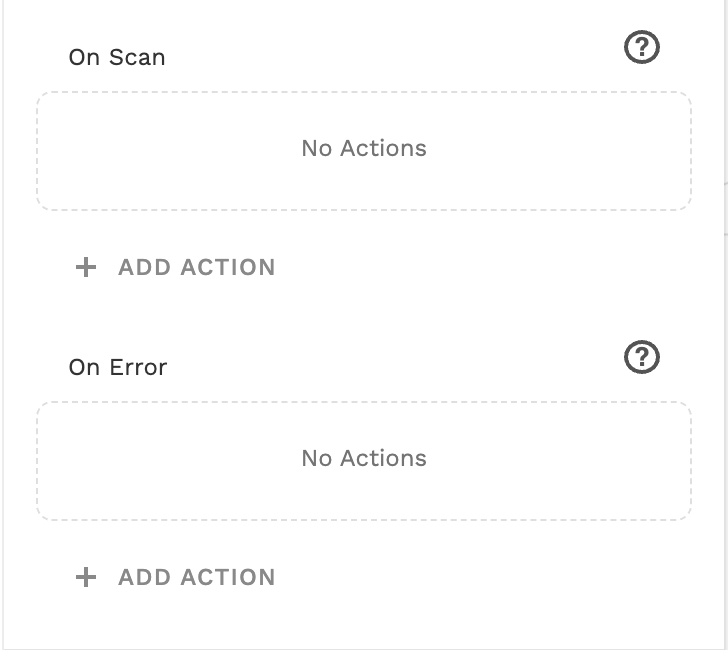
Click “Add Action” to configure actions that run in response to scanner events.
On Scan : Triggered when a code is successfully detected. Use this action to navigate to another screen, save the scanned data to your database, look up a product, or trigger an API call.
On Error : Triggered if the scanner encounters an issue, such as when camera permission is denied. The action returns an Error Message that can be displayed to inform the user.

Troubleshooting
The scanner requires camera access. If permission is denied, the scanner cannot start. Ensure to allow camera access when prompted by the device or browser.
Scanning performance depends on lighting conditions and camera quality. Enable flashlights in low-light environments and ensure the code is clearly visible within the scan frame.
Still Need Help?
Contact Adalo Support and include a screenshot of your component settings along with any error messages.
Last updated
Was this helpful?