> For the complete documentation index, see [llms.txt](https://help.adalo.com/llms.txt). Markdown versions of documentation pages are available by appending `.md` to page URLs; this page is available as [Markdown](https://help.adalo.com/integrations/sheetbridge-for-google-sheets/connect-a-google-sheet-to-adalo-with-sheetbridge.md).
# Connect a Google Sheet to Adalo with SheetBridge
### **Introduction**
This guide walks through connecting your Google Sheet Document using SheetBridge and creating an External Collection in Adalo for each of your Google Sheets. After setup, each spreadsheet tab appears as an External Collection you can use in Lists, Forms, and Actions.
***
### **Before You Begin**
* You will need a Google Spreadsheet URL (or the spreadsheet ID).
* You will need edit access if you want to create or update rows from Adalo (read-only access is sufficient for viewing data).
* Verify your Google Sheet Properties in our Mapping Property Types in Sheetbridge Help Doc.
***
### **Create your first SheetBridge External Collection**
1. In Adalo, open your app and click the Database tab in the left toolbar.
2. If you don’t have a SheetBrige account, you will first complete the Google Sign-In Permissions flow and approve access to the spreadsheet.
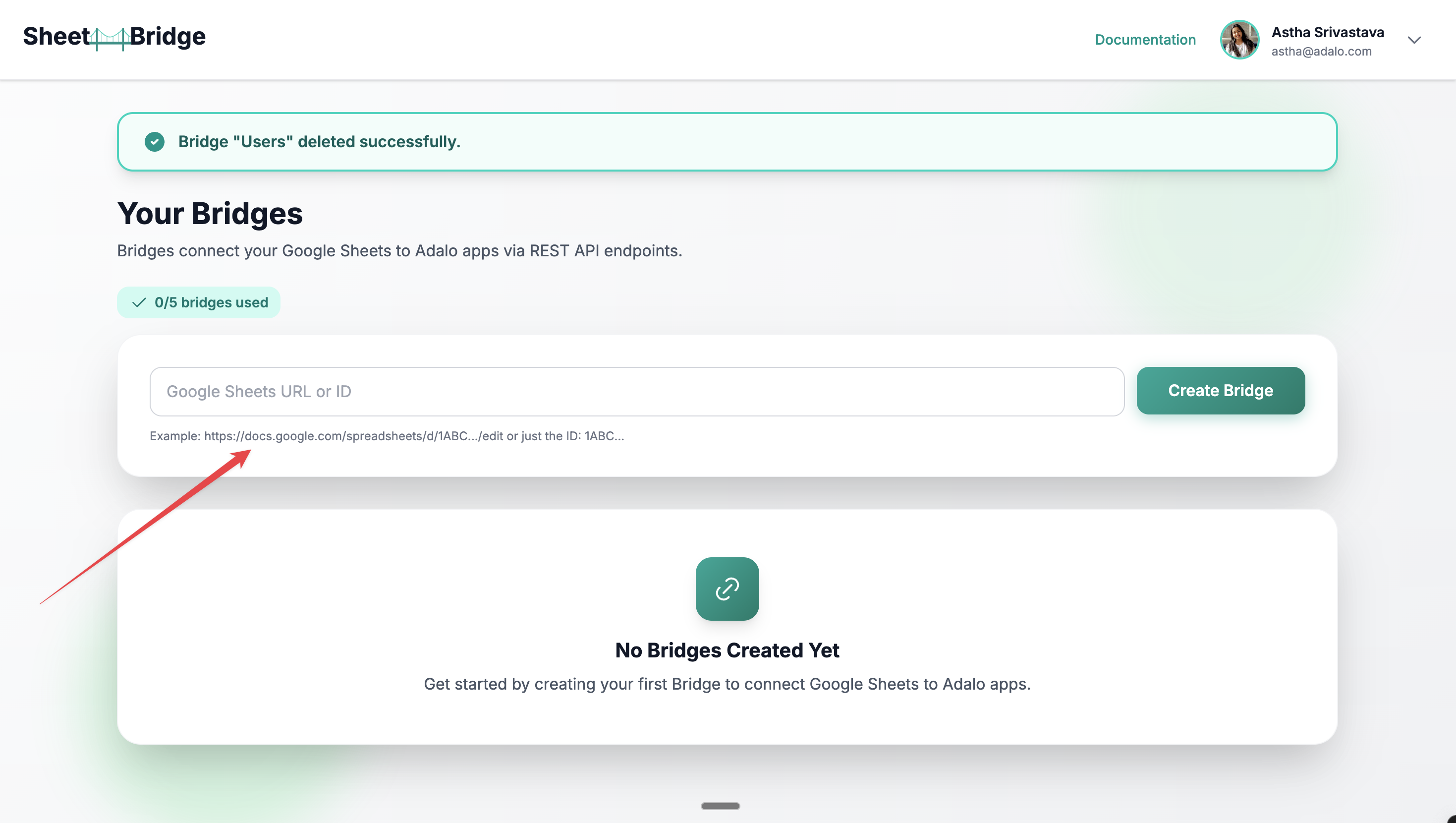
3. In SheetBridge, paste your Google Spreadsheet URL (or ID) into the SheetBridge field to create your Bridge.
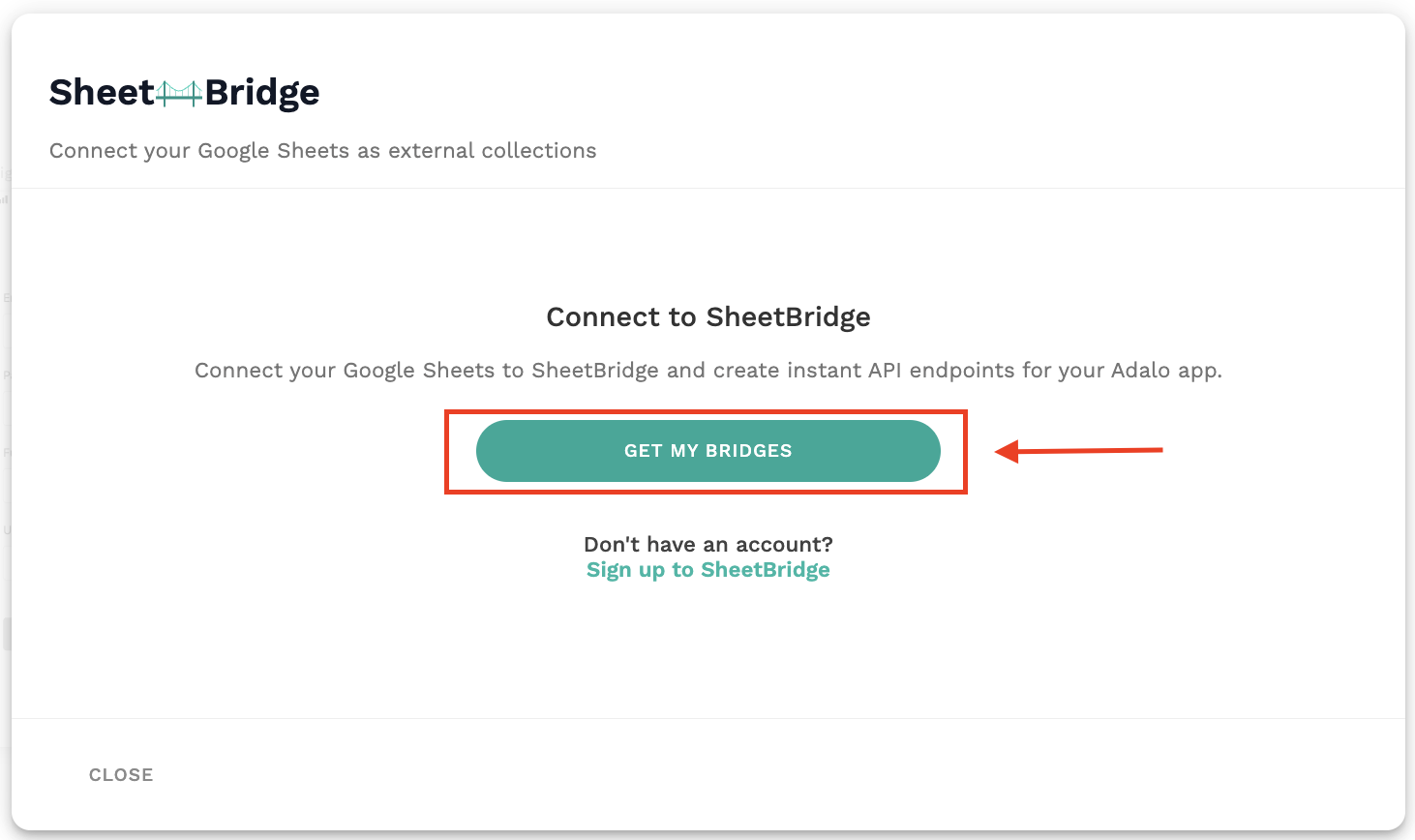
4. Confirm the connection. Go back to Adalo Builder and select ***Get My Bridges.***
5. Confirm Sheets are showing.
6. Select Sheets to add and ***Run Test*** to verify test is successful.
7. ***Connect*** to complete setup.
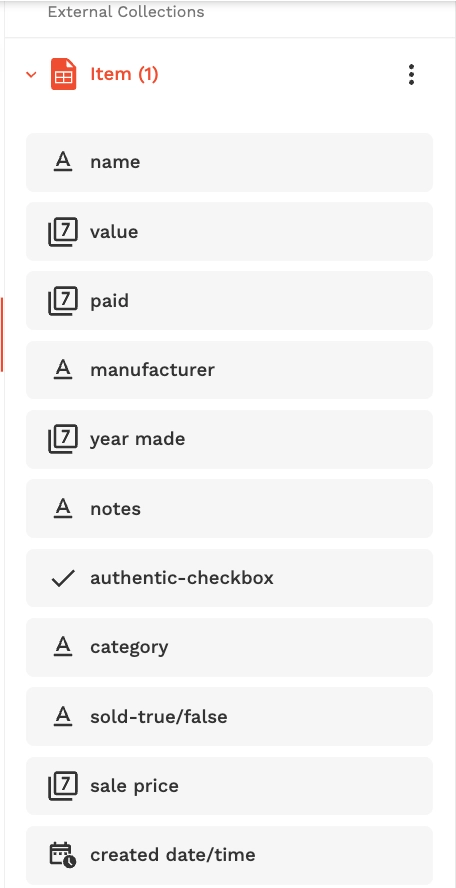
8. Adalo will detect the sheet columns and add them as properties.
***
### **Add additional tabs as collections**
If your spreadsheet has additional tabs (pages), create a separate External Collection for each tab you want to use in Adalo.
* Repeat steps 3-8 of the Add Collection flow for each additional Google Sheets tab you want in Adalo.
* Use clear collection names that match your tab names (for example: Customers, Orders, Inventory). These can be changed by editing the settings in the external collection.
### **Test that it is syncing**
1. Add a new row in Google Sheets (below your header row).
2. In Adalo app, refresh list of collection
3. Confirm the new row appears in List
### Add/Update Columns in Google Sheets
1. Add a new Column in Google Sheets.
2. In Adalo app, External Collections>Edit Collection>Run Test
3. Confirm the new property appears in response. Verify in Properties in External Collection
4. Column names must be unique in Google Sheet. If multiple share a name, only the 2nd will load.
---
# Agent Instructions
This documentation is published with GitBook. GitBook is the documentation platform designed so that both humans and AI agents can read, navigate, and reason over technical content effectively. Learn more at gitbook.com.
## Querying This Documentation
If you need additional information that is not directly available in this page, you can query the documentation by asking a question.
Perform an HTTP GET request on the following URL with the `ask` and `goal` query parameters:
```
GET https://help.adalo.com/integrations/sheetbridge-for-google-sheets/connect-a-google-sheet-to-adalo-with-sheetbridge.md?ask=&goal=
```
`ask` is the immediate question: it should be specific, self-contained, and written in natural language.
`goal` is what the user is ultimately trying to achieve, the reason they need the answer. Sharing it helps GitBook give you a better, more relevant answer. A goal is most helpful when it describes the outcome the user wants rather than restating the question. For example, with `ask=how do I create an API token`, a goal like `automate deployments from our CI pipeline` lets GitBook tailor the answer to that use case.
The response will contain a direct answer to the question and relevant excerpts and sources from the documentation.
Use this mechanism when the answer is not explicitly present in the current page, you need clarification or additional context, or you want to retrieve related documentation sections.




.png?alt=media&token=5d6d5263-12d7-42e4-b677-160157d1cc69)