> For the complete documentation index, see [llms.txt](https://help.adalo.com/llms.txt). Markdown versions of documentation pages are available by appending `.md` to page URLs; this page is available as [Markdown](https://help.adalo.com/master/ada-ai-beta.md).
# Ada AI (Beta)
Ada is currently in beta and may not yet be available in your Adalo Builder. We're actively improving her capabilities, and your feedback helps shape what comes next.
## Getting Started
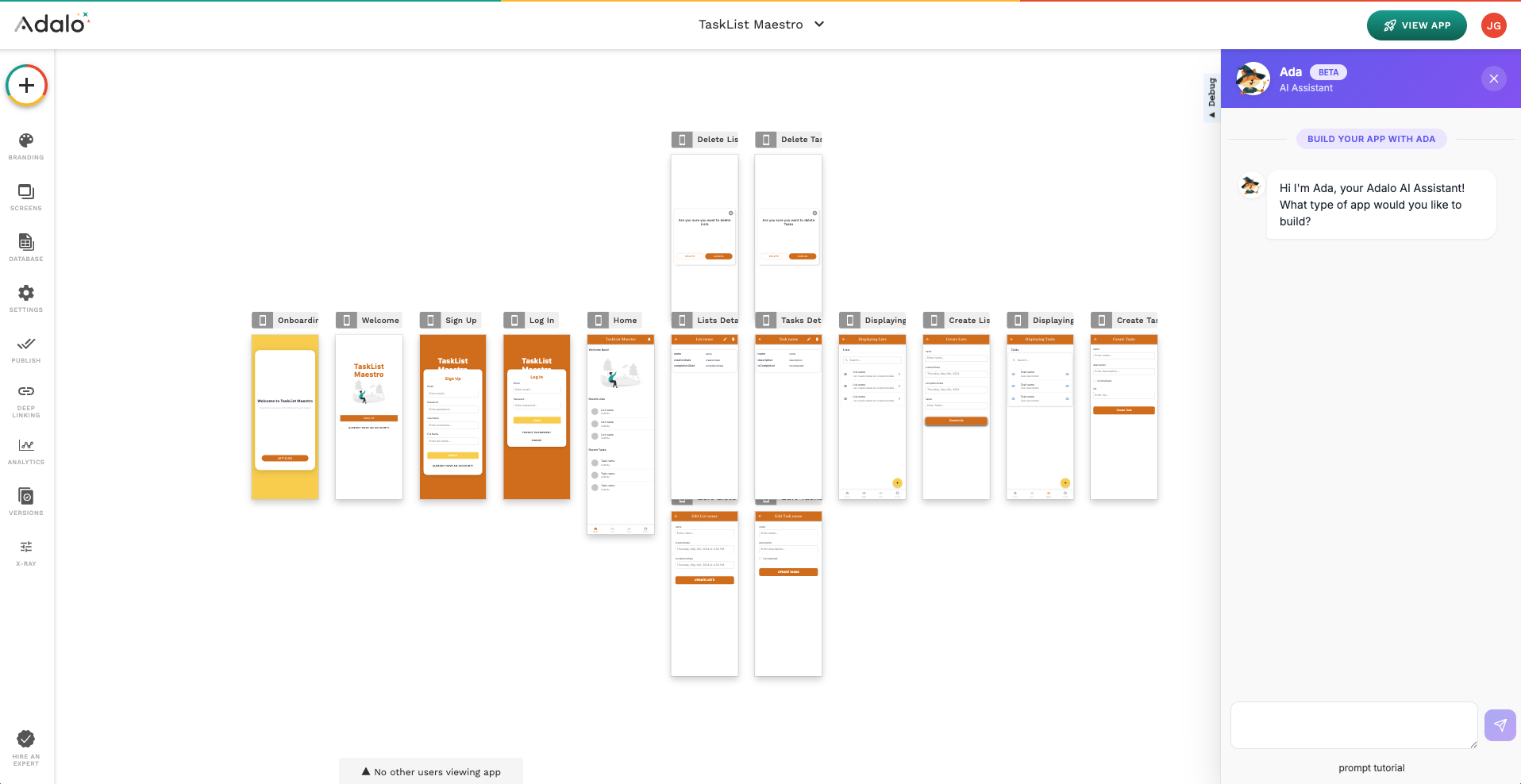
Ada is Adalo's built-in AI assistant, designed to help you build and manage your apps faster, right from the Builder. Whether you're adding screens, styling components, or working with data, Ada can handle it through simple, natural language prompts.
Ada lives inside the Adalo Builder in the bottom left corner. To use her, simply click the icon and type what you'd like to do in plain language. No code or technical syntax required. Ada will interpret your request and make changes to your app in real time.
***
## What Ada Can Do
Ada already covers a wide range of Builder actions. Below is a walkthrough of supported prompt categories with examples you can try. In the Builder, you can click any example prompt to copy it to your clipboard.
### Ada Prompt Examples
#### Screens
Manage your app's screens: create, rename, duplicate, delete, or get a summary of what's on them.
* Add a new screen called User Details
* Delete the Settings screen
* Rename the Home screen to Dashboard
* Duplicate the Profile screen
* List all my screens
* Describe what is on the Home screen
* Clear all components from the Settings screen
#### Screen Protection
Control who can access specific screens by setting role-based restrictions.
* Protect the Admin Panel so only admins can access it
* Restrict the Settings screen to admin users and redirect others to Home
* Remove admin protection from the Dashboard screen
#### Components
Add or remove UI elements on any screen.
* Add a button on the Home screen that goes to Profile
* Add a text component on the Welcome screen that says "Hello World"
* Add an image to the top of the Home screen
* Add a search bar to the Users screen
* Remove the subtitle from the Home screen
#### Lists
Display collections of data using list or card layouts.
* Add a list of Tasks to the Home screen
* Add a card list of Products to the Shop screen
* Change the title of the list on the Home screen to "My Items"
#### Forms & Inputs
Add input fields, pickers, and form controls to your screens.
* Add a date picker to the Create Event screen
* Add a dropdown on the Settings screen connected to Categories
* Add a toggle to the Profile screen
* Add a file picker to the Upload screen
* Change the submit button text on the Create Tasks form to "Save Task"
* Rename the "email" field on the Sign Up form to "Email Address"
#### Text Styling
Adjust the appearance of text elements across your app.
* Change the title on the Home screen to "Welcome Back"
* Make the title on the Dashboard bold
* Change the font size of the heading on Home to 28
* Change the subtitle color on the Welcome screen to blue
* Make the description on the About screen italic
#### Colors & Branding
Update colors across your app, from individual components to global branding.
* Change the primary color to purple
* Change the Sign Up button color on the Welcome screen to green
* Change the app bar color on the Home screen to dark blue
* Change the background of the Login screen to light gray
* Suggest some colors for my app
#### Navigation
Set up and configure navigation bars, menus, and tabs.
* Add bottom navigation with tabs Home, Search, and Profile
* Add a side navigation menu to the Dashboard
* Add an app bar to the Settings screen
* Set the active tab to Profile in the bottom navigation
#### Layout
Rearrange, resize, and organize elements on your screens.
* Move the image above the title on the Home screen
* Swap the button and the text on the Welcome screen
* Make the image on the Profile screen bigger
* Add a separator between the title and the list on Home
#### Data & Collections
Work with your app's database: add fields, inspect collections, or generate test data.
* Add a Status field to the Tasks collection
* Describe the Users collection
* Show me all the data in Products
* Generate dummy data for the Tasks collection
#### App Settings
Update global app configuration.
* Change the app name to MyApp
* Regenerate onboarding screen
***
### Tips for Getting the Best Results
* **Be specific.** Include the screen name and component you're referring to (e.g., "Change the title on the Home screen" rather than "Change the title").
* **Use natural language.** Write prompts the way you'd explain something to a teammate.
* **One thing at a time.** Ada works best with focused, single-action requests.
***
### Feedback
Ada is in beta and getting better every day. If something doesn't work as expected, let us know by emailing . Your feedback directly shapes Ada's development.
---
# Agent Instructions
This documentation is published with GitBook. GitBook is the documentation platform designed so that both humans and AI agents can read, navigate, and reason over technical content effectively. Learn more at gitbook.com.
## Querying This Documentation
If you need additional information that is not directly available in this page, you can query the documentation by asking a question.
Perform an HTTP GET request on the following URL with the `ask` and `goal` query parameters:
```
GET https://help.adalo.com/master/ada-ai-beta.md?ask=&goal=
```
`ask` is the immediate question: it should be specific, self-contained, and written in natural language.
`goal` is what the user is ultimately trying to achieve, the reason they need the answer. Sharing it helps GitBook give you a better, more relevant answer. A goal is most helpful when it describes the outcome the user wants rather than restating the question. For example, with `ask=how do I create an API token`, a goal like `automate deployments from our CI pipeline` lets GitBook tailor the answer to that use case.
The response will contain a direct answer to the question and relevant excerpts and sources from the documentation.
Use this mechanism when the answer is not explicitly present in the current page, you need clarification or additional context, or you want to retrieve related documentation sections.