> For the complete documentation index, see [llms.txt](https://help.adalo.com/llms.txt). Markdown versions of documentation pages are available by appending `.md` to page URLs; this page is available as [Markdown](https://help.adalo.com/publishing-apps/publishing-to-the-google-play-store/get-your-build-file.md).
# Get your Build file
Part 5: Generate your Build file
*Skill Level: Expert*
## Before You Begin
* Should have a good understanding of how to use Adalo.
* Must be on a paid plan to publish to Google Play Store.
*
{% hint style="danger" %}
**IMPORTANT:** Before publishing, check that no text component in your app has a **font size** of **0**. A zero font size will cause your Android app to crash on launch. Review all screens and components, including those nested inside lists, and update any zero values to **1** or higher.
{% endhint %}
## Walkthrough
1. In Adalo, in the left toolbar, click on the Publish tab.
2. Select 'Android App' and 'Start new Android Build'
3. In the modal that pops up, enter your Android Credentials.
* Enter your Package Name from the Firebase Project. These are case sensitive so ensure they match the one in the Firebase Project exactly.
* Upload the Frontend google-services.json file you downloaded from your Firebase account.
* Upload the Service Account Key file you downloaded from your Firebase account.
* Click Next.
4. Enter your Android App Settings.

5. Customize the Display Name for your App.
6. Upload a Notifications Icon for your App.
* ***This is required, even if your app does not yet use push notifications.***
* *Make sure your icon is 96 x 96 pixels and is blank with a transparent background.*
7. Select Location Features used in your app. See [**Android Location Precision**](/publishing-apps/publishing-to-the-google-play-store/get-your-build-file/android-location-precision-none-approximate-precise.md) for more information.
1. **None** - Your app does not use Location Properties or Map Component.
2. **Approximate (Recommended and set by default)** - City- or neighborhood-level location. Lower battery use and a less invasive permission prompt.
3. **Precise** **(Not Recommended)**- GPS-level accuracy. May trigger increased Google Play review scrutiny — only use if your app needs exact coordinates.
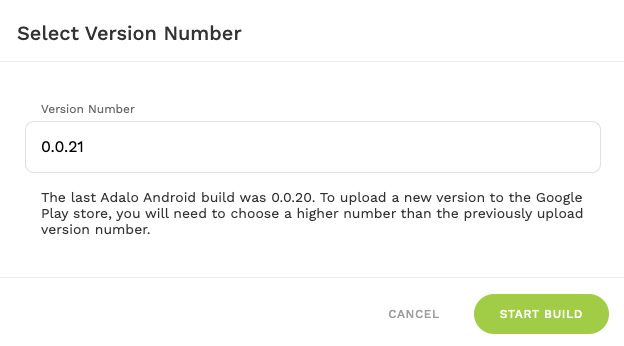
8. Click Save and Continue.  9. Select Version Number and Start Build.
10. While the app is building, you will see a timer showing the estimated remaining time.
11. Once the build has completed, you will see the download icon.
9. Select Version Number and Start Build.
10. While the app is building, you will see a timer showing the estimated remaining time.
11. Once the build has completed, you will see the download icon.  Download the Android App Bundle for your app which is **.AAB** format.
{% hint style="danger" %}
**Important:** If this is the first time you are creating an Adalo build with this Package Name, we will create the necessary Upload Certificate. If you are using a Package Name that has already been published with Adalo, we will use the original Upload Certificate.
{% endhint %}
### Next Steps
* If you are creating a **new** listing in Google Play follow the steps in [this guide](/publishing-apps/publishing-to-the-google-play-store/create-new-google-play-listing.md).
* If you are updating an **existing** listing in Google Play, follow the steps in[ this guide](/publishing-apps/upload-your-app-to-google-and-create-your-store-listing.md).
## Need Help?
If you need additional help publishing your Google App, you can always ask in our [community forum](https://forum.adalo.com/)! Be sure to paste the link to this article in your post as well!
For more detailed information, check out the [Google Help Docs | Create and Set up your app](https://support.google.com/googleplay/android-developer/answer/9859152?hl=en\&ref_topic=7072031\&sjid=15460987125494480347-NA).
---
# Agent Instructions
This documentation is published with GitBook. GitBook is the documentation platform designed so that both humans and AI agents can read, navigate, and reason over technical content effectively. Learn more at gitbook.com.
## Querying This Documentation
If you need additional information that is not directly available in this page, you can query the documentation by asking a question.
Perform an HTTP GET request on the following URL with the `ask` and `goal` query parameters:
```
GET https://help.adalo.com/publishing-apps/publishing-to-the-google-play-store/get-your-build-file.md?ask=&goal=
```
`ask` is the immediate question: it should be specific, self-contained, and written in natural language.
`goal` is what the user is ultimately trying to achieve, the reason they need the answer. Sharing it helps GitBook give you a better, more relevant answer. A goal is most helpful when it describes the outcome the user wants rather than restating the question. For example, with `ask=how do I create an API token`, a goal like `automate deployments from our CI pipeline` lets GitBook tailor the answer to that use case.
The response will contain a direct answer to the question and relevant excerpts and sources from the documentation.
Use this mechanism when the answer is not explicitly present in the current page, you need clarification or additional context, or you want to retrieve related documentation sections.
Download the Android App Bundle for your app which is **.AAB** format.
{% hint style="danger" %}
**Important:** If this is the first time you are creating an Adalo build with this Package Name, we will create the necessary Upload Certificate. If you are using a Package Name that has already been published with Adalo, we will use the original Upload Certificate.
{% endhint %}
### Next Steps
* If you are creating a **new** listing in Google Play follow the steps in [this guide](/publishing-apps/publishing-to-the-google-play-store/create-new-google-play-listing.md).
* If you are updating an **existing** listing in Google Play, follow the steps in[ this guide](/publishing-apps/upload-your-app-to-google-and-create-your-store-listing.md).
## Need Help?
If you need additional help publishing your Google App, you can always ask in our [community forum](https://forum.adalo.com/)! Be sure to paste the link to this article in your post as well!
For more detailed information, check out the [Google Help Docs | Create and Set up your app](https://support.google.com/googleplay/android-developer/answer/9859152?hl=en\&ref_topic=7072031\&sjid=15460987125494480347-NA).
---
# Agent Instructions
This documentation is published with GitBook. GitBook is the documentation platform designed so that both humans and AI agents can read, navigate, and reason over technical content effectively. Learn more at gitbook.com.
## Querying This Documentation
If you need additional information that is not directly available in this page, you can query the documentation by asking a question.
Perform an HTTP GET request on the following URL with the `ask` and `goal` query parameters:
```
GET https://help.adalo.com/publishing-apps/publishing-to-the-google-play-store/get-your-build-file.md?ask=&goal=
```
`ask` is the immediate question: it should be specific, self-contained, and written in natural language.
`goal` is what the user is ultimately trying to achieve, the reason they need the answer. Sharing it helps GitBook give you a better, more relevant answer. A goal is most helpful when it describes the outcome the user wants rather than restating the question. For example, with `ask=how do I create an API token`, a goal like `automate deployments from our CI pipeline` lets GitBook tailor the answer to that use case.
The response will contain a direct answer to the question and relevant excerpts and sources from the documentation.
Use this mechanism when the answer is not explicitly present in the current page, you need clarification or additional context, or you want to retrieve related documentation sections.