> For the complete documentation index, see [llms.txt](https://help.adalo.com/llms.txt). Markdown versions of documentation pages are available by appending `.md` to page URLs; this page is available as [Markdown](https://help.adalo.com/publishing-apps/publishing-to-the-google-play-store/register-android-app-and-download-config-file.md).
# Register Android App & Download Config File
Part 3 of publishing to the Google Play Store
*Skill Level: Expert*
## Before You Begin
* Should have knowledge about [Databases](https://help.adalo.com/database)
* Should be very comfortable using Adalo
## Walkthrough
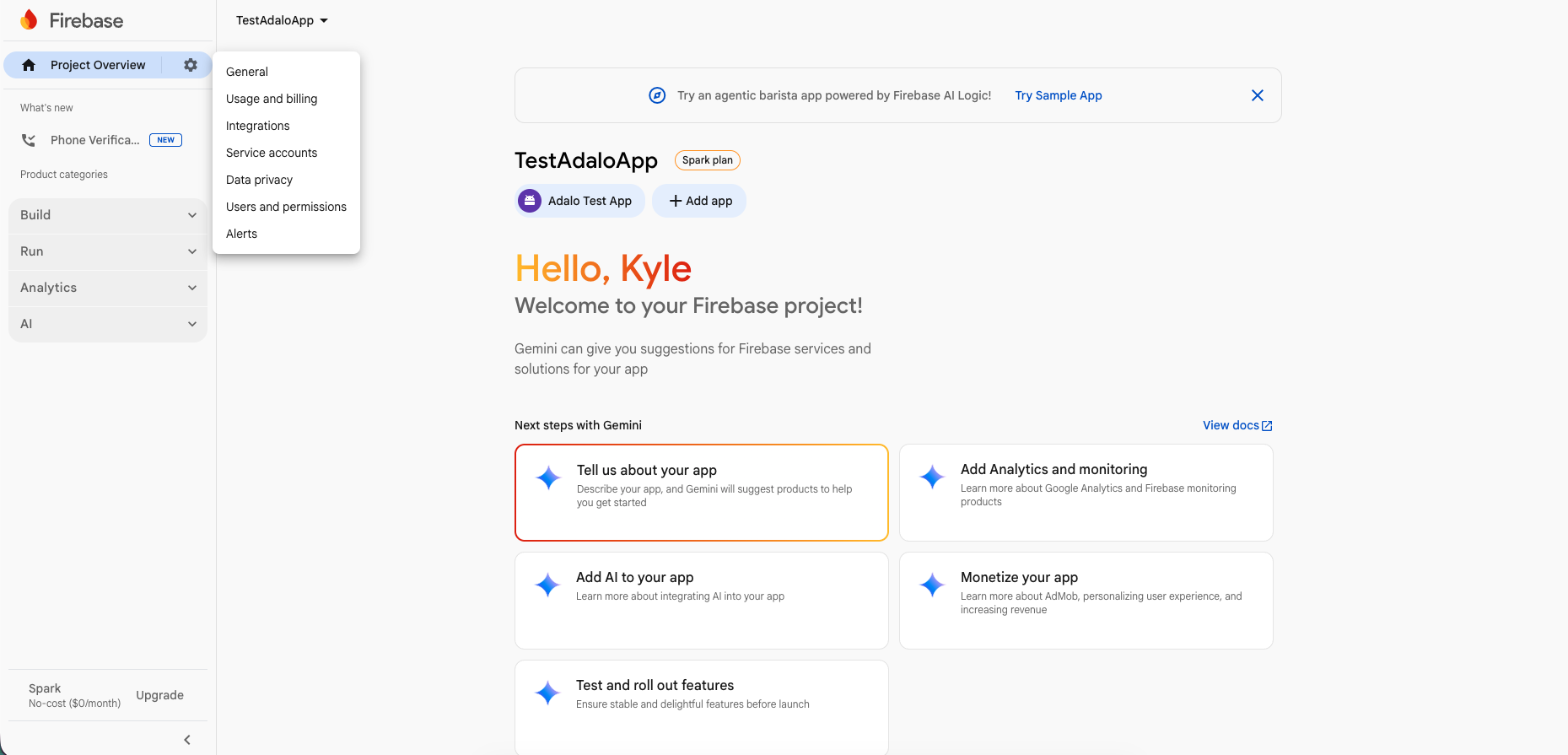
1. Click on the setting icon (in the top left shaped like a gear) and then select project settings.
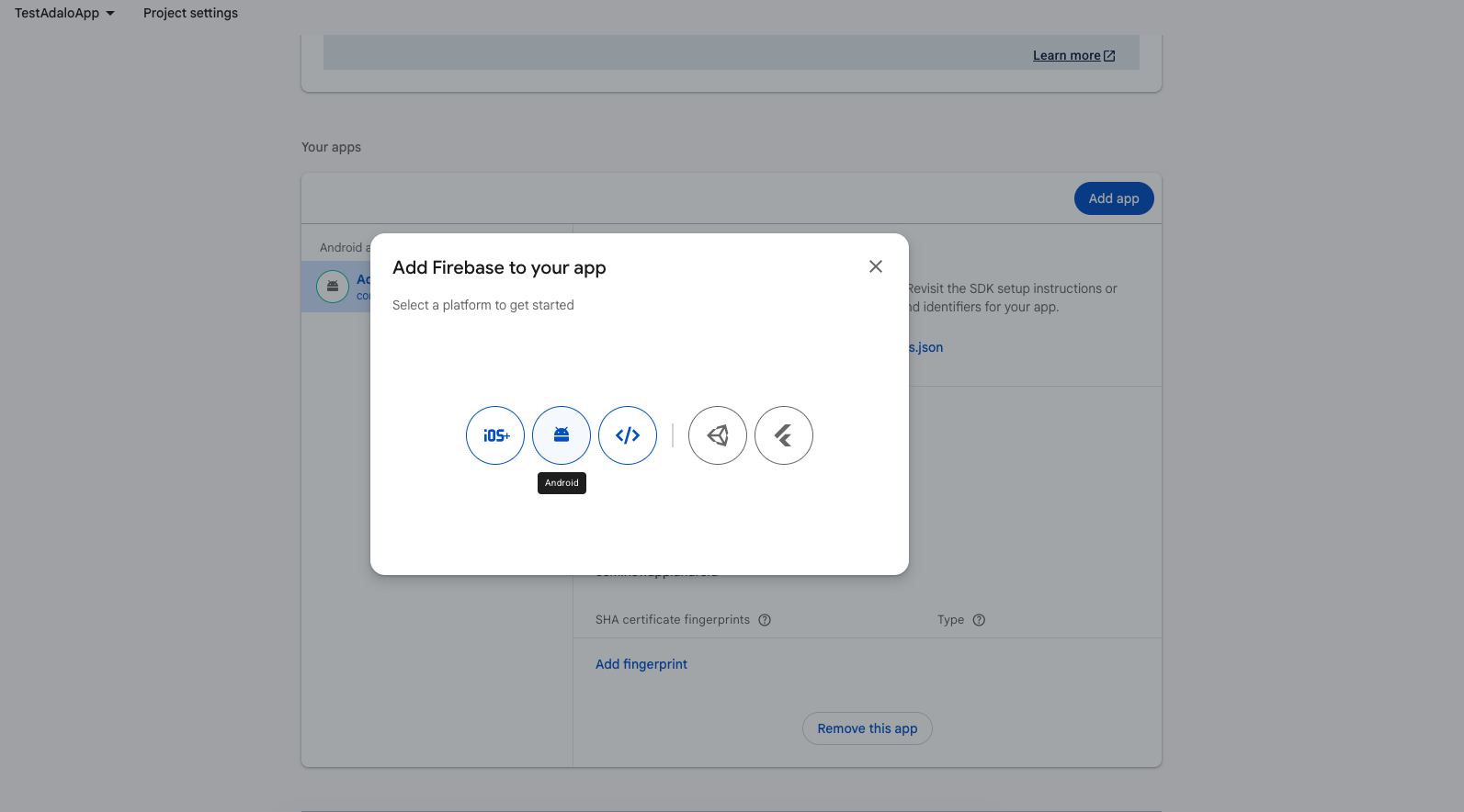
2. On the settings page, you’ll see ‘Your Apps’ in the middle. Click on the Add App, then click the Android icon to create a new Android app.
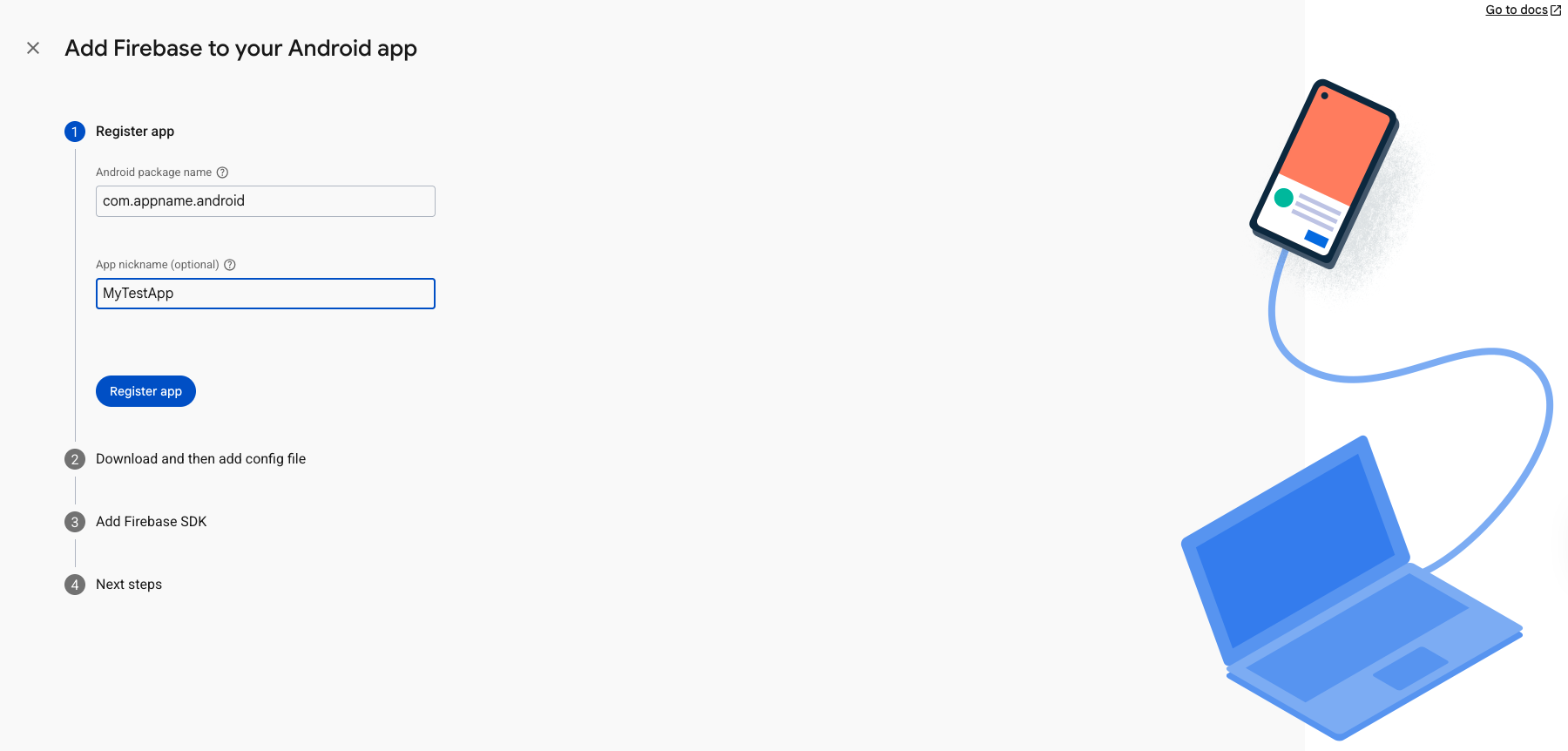
3. Create a [***Package Name***](#user-content-fn-1)[^1] using the following syntax: [***com.appname.android**.*](#user-content-fn-2)[^2] The Package Name of an Android app uniquely identifies your app on the device, in Google Play Store, and in supported third-party Android stores. ***The Package Name be tied to your Listing in Google Play and cannot be changed once the Listing is created.***
4. You can give it a nickname and then click register.
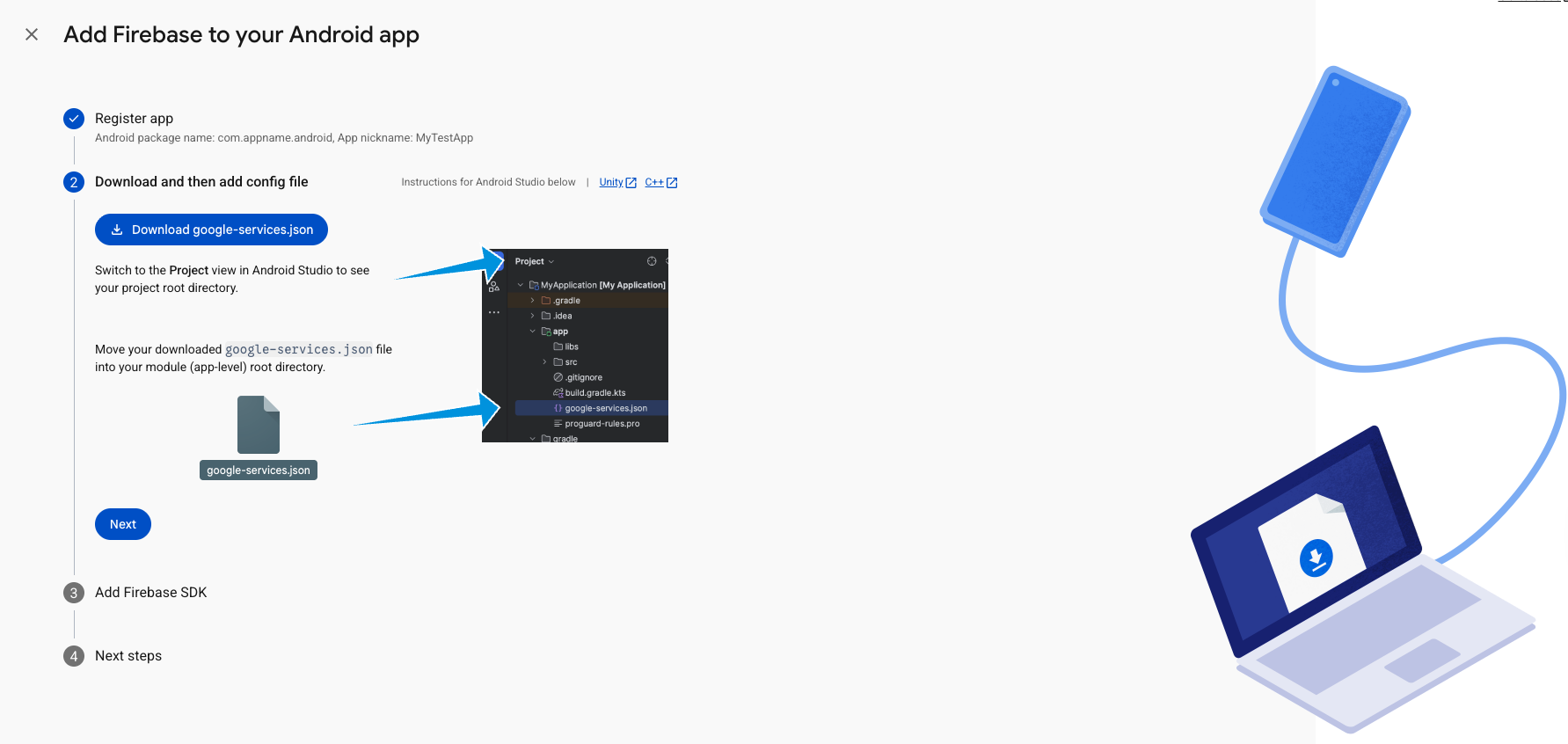
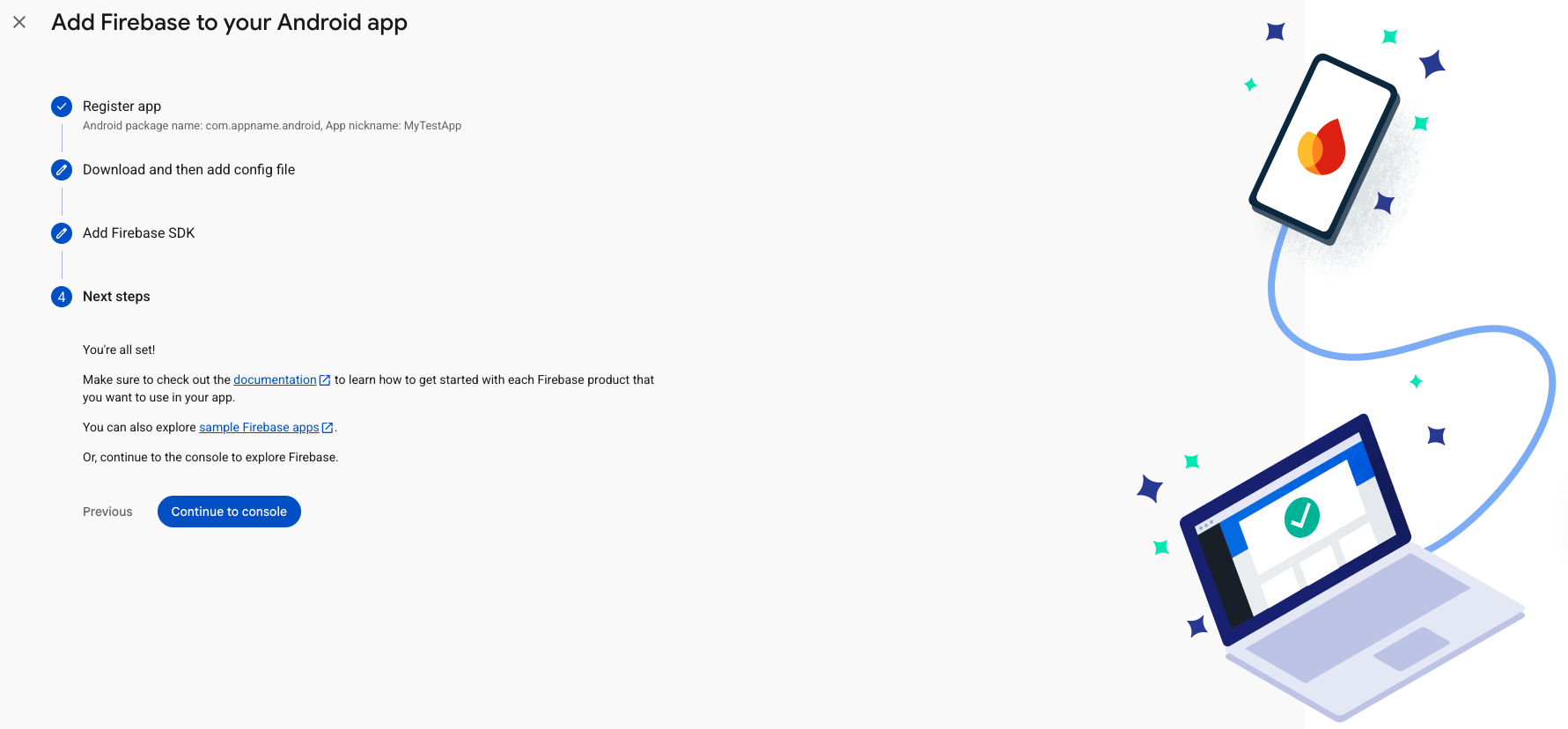
5. Download the Config file (Frontend google-services.json). You will load this into the Adalo Builder when creating your Build File.
6. Skip "Add Firebase SDK" - Adalo will take care of this for you automatically.
7. Continue to Console.
## Help
If you need additional help with this article, you can always ask in our [community forum](https://forum.adalo.com/)! Be sure to paste the link to this article in your post as well!
[^1]: **Important:** Once you publish your app, you should never change the Package Name. If you change the Package Name, Google Play Store treats the upload as a completely different app. If you want to upload a new version of your app, you must use the same Package Name and [signing certificate](https://developer.android.com/studio/publish/app-signing) as when originally published.
[^2]: **This is just an example.**
Package names are case sensitive and must meet the following requirements:
* It must have at least two segments (one or more dots).
* Each segment must start with a letter.
* All characters must be alphanumeric or an underscore \[a-zA-Z0-9\_].
---
# Agent Instructions
This documentation is published with GitBook. GitBook is the documentation platform designed so that both humans and AI agents can read, navigate, and reason over technical content effectively. Learn more at gitbook.com.
## Querying This Documentation
If you need additional information that is not directly available in this page, you can query the documentation by asking a question.
Perform an HTTP GET request on the following URL with the `ask` and `goal` query parameters:
```
GET https://help.adalo.com/publishing-apps/publishing-to-the-google-play-store/register-android-app-and-download-config-file.md?ask=&goal=
```
`ask` is the immediate question: it should be specific, self-contained, and written in natural language.
`goal` is what the user is ultimately trying to achieve, the reason they need the answer. Sharing it helps GitBook give you a better, more relevant answer. A goal is most helpful when it describes the outcome the user wants rather than restating the question. For example, with `ask=how do I create an API token`, a goal like `automate deployments from our CI pipeline` lets GitBook tailor the answer to that use case.
The response will contain a direct answer to the question and relevant excerpts and sources from the documentation.
Use this mechanism when the answer is not explicitly present in the current page, you need clarification or additional context, or you want to retrieve related documentation sections.