# Billing, Invoices, and Payments
*Skill Level: Beginner*
## Before You Begin
* Only Account Owners will be able to make changes to billing and payments within the Account Settings.
{% hint style="warning" %}
If using a **Coupon Code**, please ensure you select the correct Plan/Duration when checking out.
*i.e. If your coupon is valid on a **Monthly Professional plan,** it **will not** work on the **Yearly Professional plan**, and you will be charged the full amount.*
{% endhint %}
## Walkthrough
Access Billing Dashboard
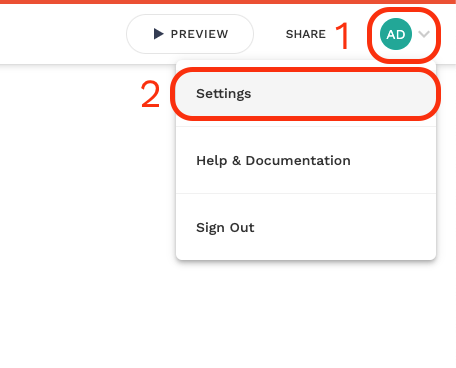
**1.)** Click on team switcher in the top right, then click on **Settings**.
 \
\
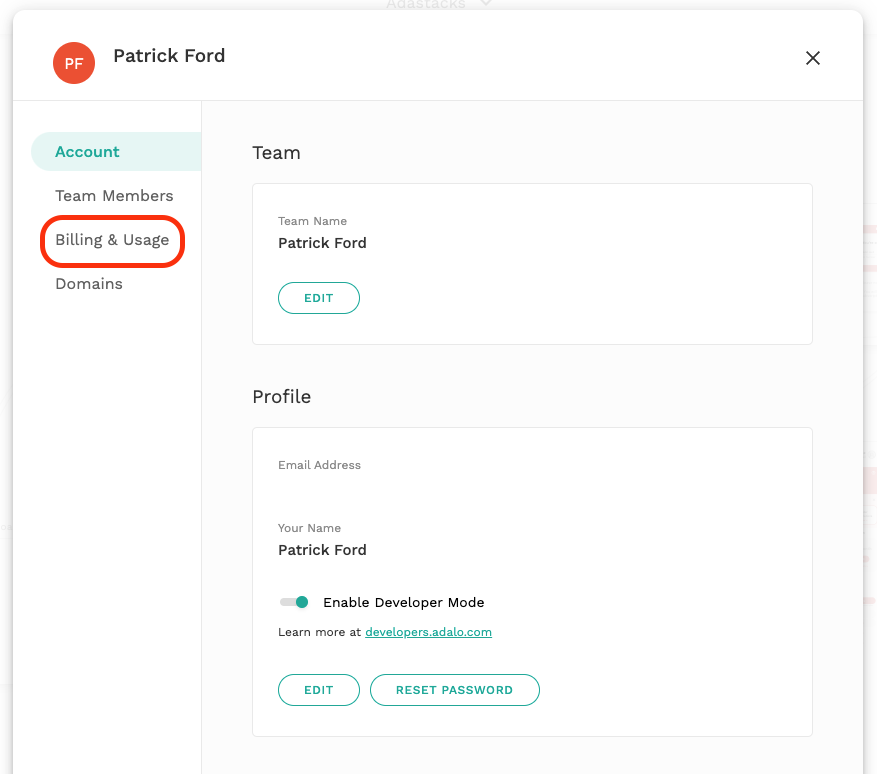
**2.)** In the modal that appears, click on the **Billing and Usage** tab.
\
\
**2.)** In the modal that appears, click on the **Billing and Usage** tab.
 \
\
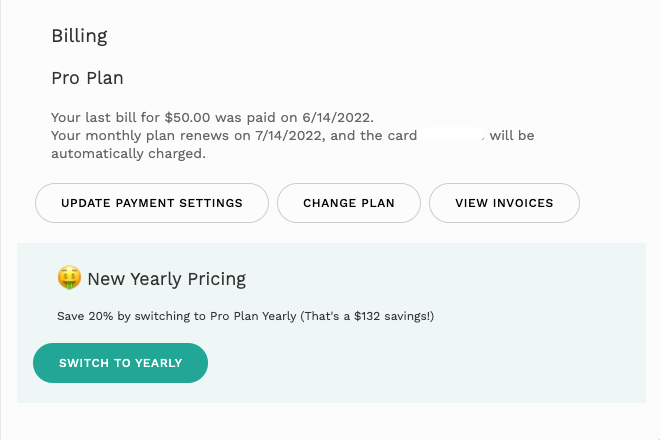
**3.)** Scroll down past the [App Actions Dashboard](https://help.adalo.com/~/changes/u7hGXGFGahgZx26fqIxT/action-basics/app-actions-dashboard) in the popup to find the **Billing** section at the bottom.
***NOTE:** This **Billing** section will only display billing, payment, and invoicing information if you are on an active and paid Adalo plan. If you're on the **Free** plan, you will be presented with plan upgrade options here instead.*
\
\
**3.)** Scroll down past the [App Actions Dashboard](https://help.adalo.com/~/changes/u7hGXGFGahgZx26fqIxT/action-basics/app-actions-dashboard) in the popup to find the **Billing** section at the bottom.
***NOTE:** This **Billing** section will only display billing, payment, and invoicing information if you are on an active and paid Adalo plan. If you're on the **Free** plan, you will be presented with plan upgrade options here instead.*
Upgrade your plan
**1.)** Click **See Plan Options.**
**2.)** Select desired plan from the popup.

**3.)** Select Apps that should be published from the popup shown below. Click **Next.**

**4.)** Enter card information or select from previously used cards and complete Checkout. Click **Next**.

Update your payment method
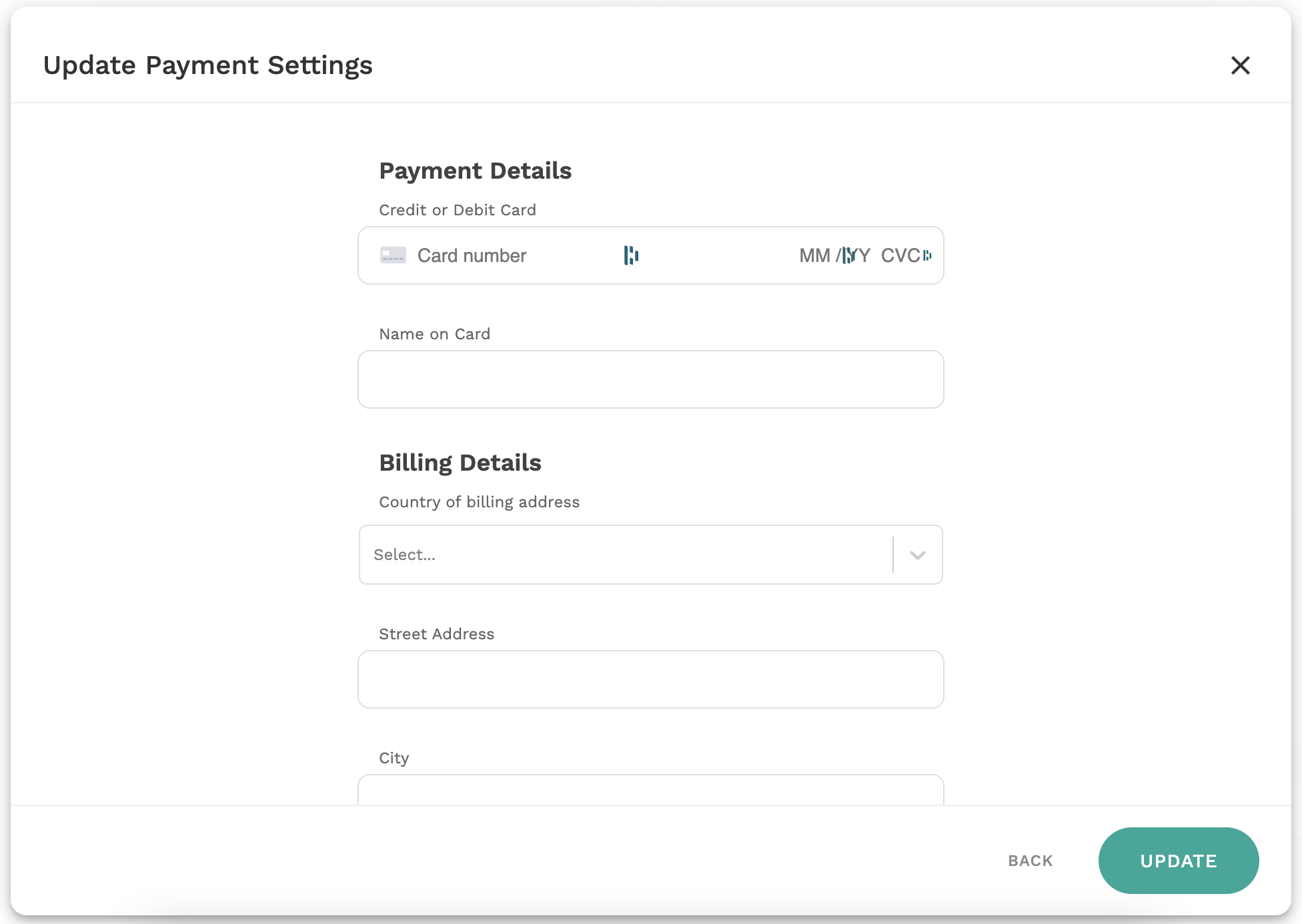
**1.)** Click on **Update Payment** **Settings.**
**2.)** A popup will open where you can update your card information and address. When you're finished, just click **Update**.
Changing your Plan. (Upgrading or Downgrading)
**1.)** Under **Usage & Billing,** Click **Change Plan.**

***Note:** Changes to all Legacy plans are **final** and **can not** be reversed.*
**2.)** Toggle for monthly/yearly pricing. **3.)** Select desired plan from the popup.

**4.)** Select Apps that should be published from the popup shown below. You will need to remove published apps if changing to a plan with different app allowances.
**5.)** If you have more published apps selected than are included with your plan, you will see the add on charge before proceeding.

**6.)** Once the published apps are accepted you will see the Add-On total if applicable. Click **Next.**
**7.)** If you have more Team Members than are included with your plan, you will see the add on charge. You can choose to remove them or proceed with the additional charge. click **Next**.

***Note:** You can only remove team members from this screen. If you wish to add additional team members, please check out*[ *Adding Team Members* ](https://help.adalo.com/~/changes/u7hGXGFGahgZx26fqIxT/adalo-account/team-members/add-team-members-to-your-adalo-app)*for instructions.*
**8.)** Enter card information or select from previously used cards and complete Checkout. Click **Next**.
**3.)** Select desired plan from the popup.

**4.)** Select Apps that should be published from the popup shown below. You will need to remove published apps if changing to a plan with different app allowances.
**5.)** If you have more published apps selected than are included with your plan, you will see the add on charge before proceeding.

**6.)** Once the published apps are accepted you will see the Add-On total if applicable. Click **Next.**
**7.)** If you have more Team Members than are included with your plan, you will see the add on charge. You can choose to remove them or proceed with the additional charge. click **Next**.

***Note:** You can only remove team members from this screen. If you wish to add additional team members, please check out*[ *Adding Team Members* ](https://help.adalo.com/~/changes/u7hGXGFGahgZx26fqIxT/adalo-account/team-members/add-team-members-to-your-adalo-app)*for instructions.*
**8.)** Enter card information or select from previously used cards and complete Checkout. Click **Next**.
Get your Invoice
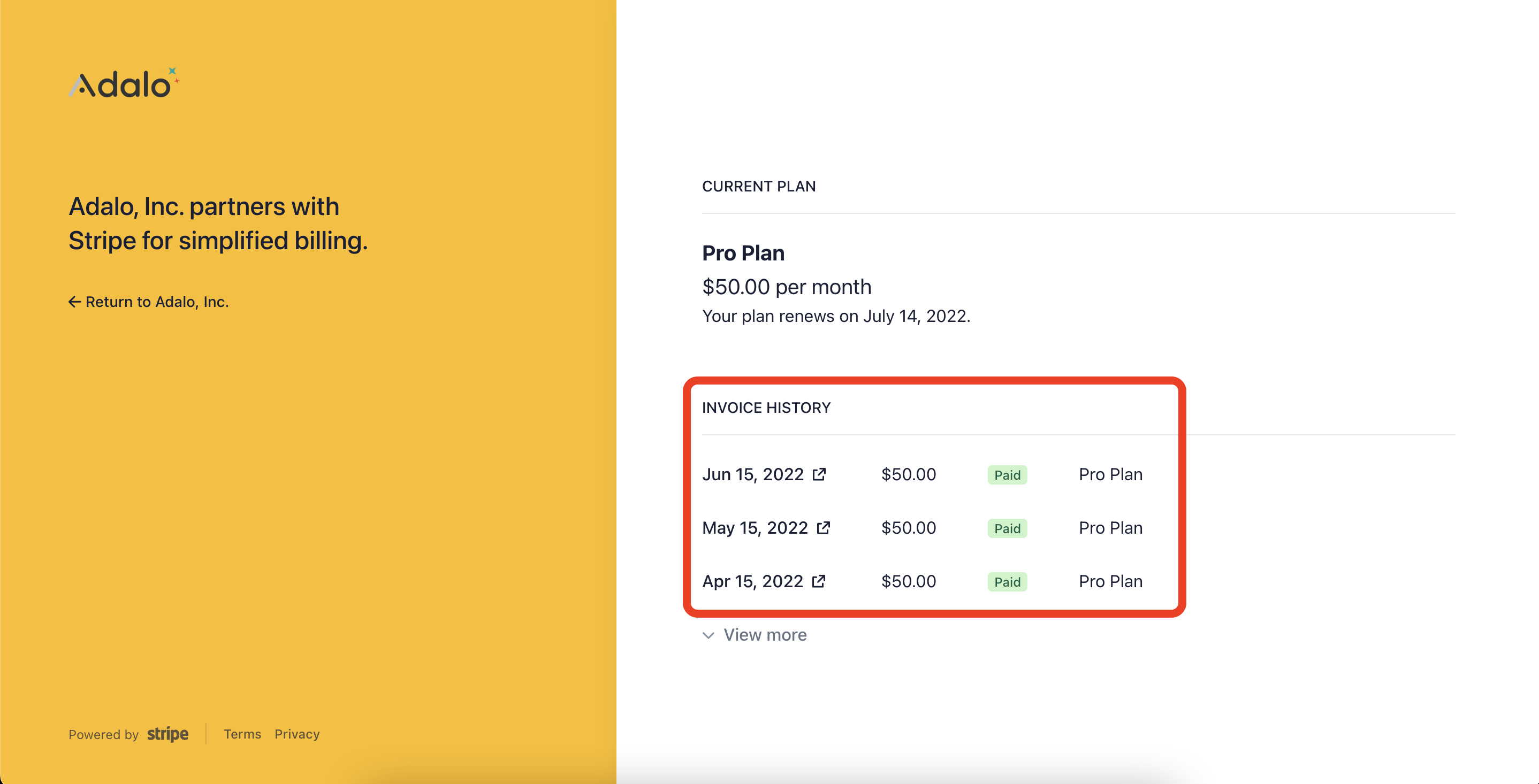
**1.)** Click on the **View Invoices** button in the **Billing** Section. A new tab will open in your browser showing all of the past invoices that have been generated for your account.
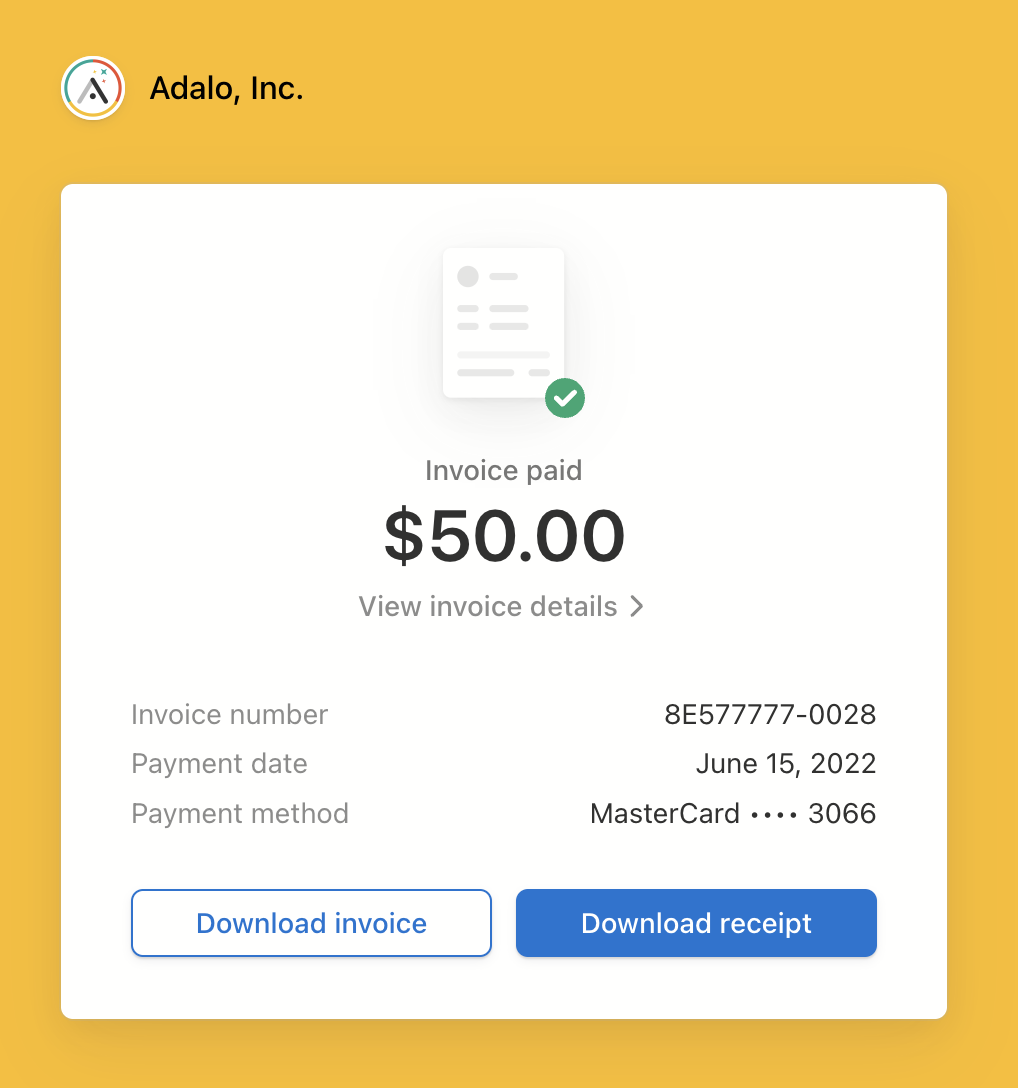
 **2.)** Clicking on an invoice will open another new tab where you can view the invoice, download the invoice, or download the receipt that was generated upon payment.
## Learn More
* You can learn more about App Actions in the [App Actions Dashboard](https://help.adalo.com/~/changes/u7hGXGFGahgZx26fqIxT/action-basics/app-actions-dashboard) help article.
## Help
If you need additional help with this article, you can always ask in our [community forum](https://forum.adalo.com/)! Be sure to paste the link to this article in your post as well!\
\
If you need assistance with your billing or have questions about action usage, you can always [submit a support ticket](https://info.adalo.com/submit-a-support-ticket) as well.