# Classes List Screen
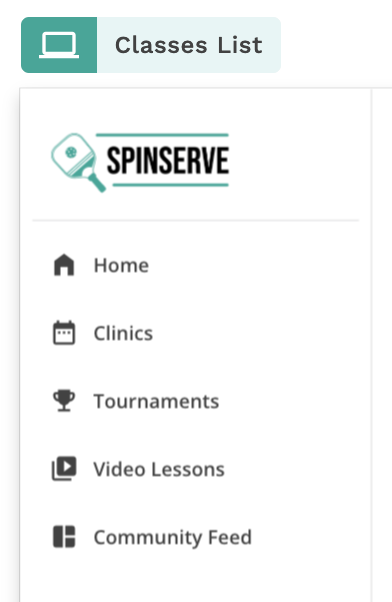
The Class List Screen is used to display all the classes within a specific category. This screen is found when a user clicks on a Category Item on the Category List Screen. The Class List Screen is made up of several components including the side navigation component, a shape component, a breadcrumbs group, text components, a list component.
## The Components
### **Side Navigation**
The side navigation should appear on each screen you intend for the user to navigate. This is important to help the user find the information they are looking for. In this feature template, on this screen, you will notice that nothing is highlighted (in comparison to the side navigation component on the ‘Category List’ screen). When a user lands on this screen, they are no longer navigating through the side nav.
{% hint style="info" %}
If you change something on one screen in the side navigation component, you must change all instances of the side navigation on the other screens. You can do this using CMD + C (copy) and CMD + V (paste) on a Mac.
{% endhint %}
### **Shape Component — Back Button**
This component acts as a button to help a user navigate back to the previous page that they came from.
⚡ **Shape Actions**
This shape contains a Link Action to go ‘Back.’
### **Group — Breadcrumbs**
A group is made up of several components that operate as one unit. This group, in particular, contains a couple Icon components and Text Components. Nothing is connected to the database via Magic Text, so any changes made in the database will not impact this group.
The highlighted green area denotes the screen the user is on, while the light gray text shows the users that there are more actions they can do.
⚡ **Breadcrumb Actions**
The text “All Clinics” contains a Link Action to go to the ‘Category List’ Screen.
### Text Components — 2 Components
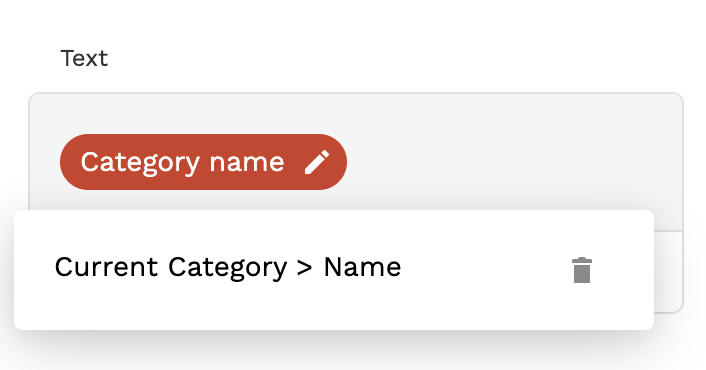
Each component is connected to the database to display the ‘Name’ from the ‘Current Category’ and the ‘Long Description’ from the ‘Current Category.’ This is known as Magic Text.
When a user selects a Category from the ‘Category List’ Screen, Adalo defines this as the ‘Current Category,’ which then can be selected through Magic Text to display information related to that selected category.
### List Component — Desktop & Tablet List and Mobile List
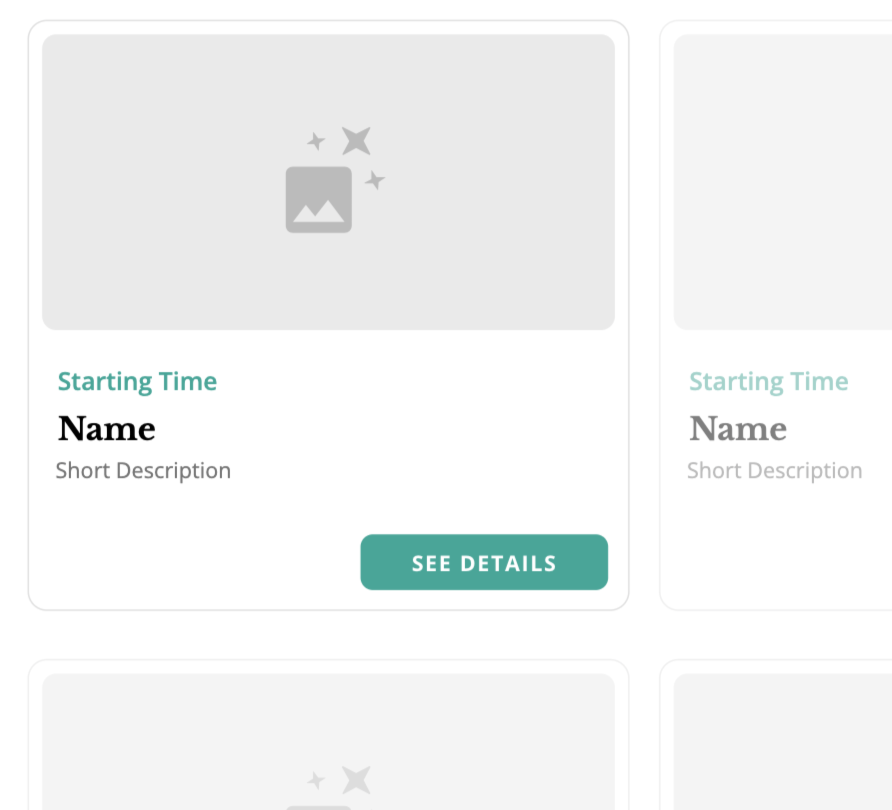
The list component is connected to the database and displays information from the Classes Collection.
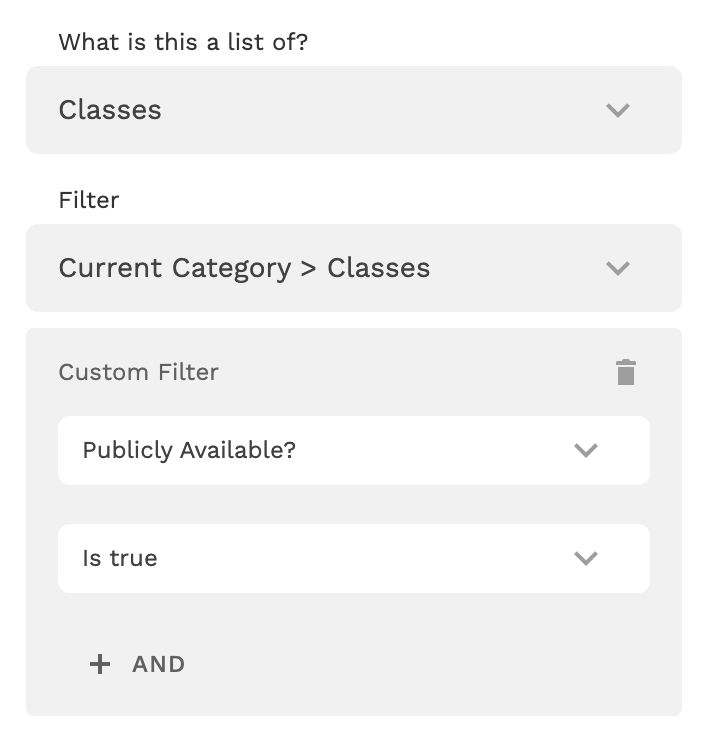
This list is unique because it contains a filter. The filter ensures that only Classes from the selected Category are displayed and that each Class is available.
Without this filter, all classes in the collection would display regardless of their availability or category.
⚡ **List Actions**
On the “SEE DETAILS” button within the list card, there is a Link Action to the ‘Class Details’ screen.
{% hint style="warning" %}
When switching to the Mobile View, there is an additional list component named “Mobile List” where the layout changes from 2 columns to 1 column. All other functionality remains the same.
If you make changes to one version of the list & want those changes to be reflected in the other view, you must change both versions.
{% endhint %}