# Messaging Screen
The Messaging Screen is comprised of several elements that are reminiscent of the popular business app, Slack. With a navigational left hand menu, as well as a ‘Channel’ menu, this feature template allows makers to create an app that is feature rich and pleasantly designed.
## The Components
### **Side Navigation**
The side navigation is the main way that users will navigate around your app. In this case, the second menu item is highlighted to show the users are within the messaging part of the app.
If you would like to utilize this navigation throughout your app, simply copy + paste this component and change the ‘Active Menu Item’ to reflect which screen someone is viewing.
If you would like text to display alongside the icons, change the settings to Side Navigation > On Desktop > Medium Side Menu or the settings to Menu Style > Small Side Menu Item Text toggled on.
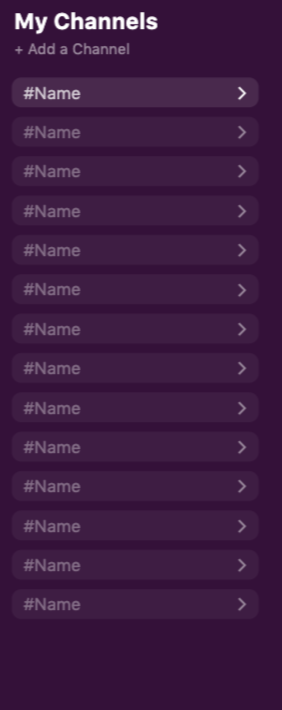
### Sidebar Group
This sidebar contains multiple components includes some text components & a list component. The list contains all the channels that the Logged In User belongs to.
⚡ **Text Action**
The ‘+ Add a Channel’ Text contains a Link Action to the ‘Channels’ Screen.
⚡ **List Action**
When an item in the list is clicked on, there is an Update Action to update the Logged In User > Active Channel > Channel ID of the channel selected.
### TopBar Group
**Text Components:**
* The #Name Text Component is controlled by Magic Text, so the information comes from the database. The Channel Name reflected here is based on the “Active Channel” property in the Users Collection.
* The Count Text Component is controlled by Magic Text, and is the count of all users in the channel.
**Icon Components**
* Search Icon
* ⚡ Link Action to the ‘Search Messages’ Screen
* More\_Vert Icon
* ⚡ Link Action to the ‘Edit Channel Modal’ Screen
### Messages Group
This is a list of Channel Messages, which is **filtered** by all the channel messages that belong to the Logged In Users > Active Channel and is **sorted** by the Create Date of the message from oldest to newest.
**Icon — Icon 4**
The “More Vert” Icon is sometimes visible, based on whether or not the Logged In User created the message.
⚡ **Icon Action**
Link Action to the ‘Edit Message Modal’ Screen.
### Chat Form Section
#### Input Component:
The Input Component is where Users will enter their message to be sent to the channel.
#### **Icon Component:**
The Send Icon contains the action once a message has been created.
⚡ **Icon Action**
Create a Channel Message where the ‘Message Text’ is the “Input,” the Channel is “Current Channel” and the User is “Logged In User”