# Get your Build file
*Skill Level: Expert*
## Before You Begin
* Should be very comfortable using Adalo
## Walkthrough
1. In Adalo, in the left toolbar, click on the Publish tab.
2. Select 'Android App' and 'Start new Android Build'
3. In the modal that pops up, enter your Android Credentials.
* Enter your Package Name from the Firebase Project. These are case sensitive so ensure they match the one in the Firebase Project exactly.
* Upload the google-services.json file you downloaded from your Firebase account.
* Upload the Service Account Key file you downloaded from your Firebase account.
* Click Next.
4. Enter your Android App Settings.
* Customize the Display Name for your App.
* Upload a Notifications Icon for your App.
* ***This is required, even if your app does not yet use push notifications.***
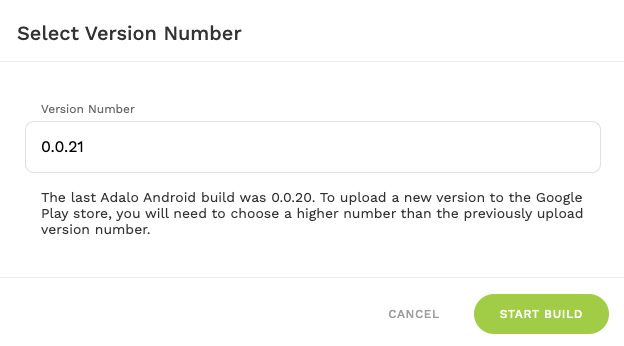
* Click Save and Continue.  5. Select Version Number and Start Build.
6. While the app has started building, you will see a timer showing the estimated remaining time.
7. Once the build has completed, you will see the download icon.
5. Select Version Number and Start Build.
6. While the app has started building, you will see a timer showing the estimated remaining time.
7. Once the build has completed, you will see the download icon.  Download the Android App Bundle for your app which is **.AAB** format.
{% hint style="danger" %}
**Important:** If this is the first time you are creating an Adalo build with this Package Name, we will create the necessary Upload Certificate. If you are using a Package Name that has already been published with Adalo, we will use the original Upload Certificate.
{% endhint %}
### Next Steps
* If you are creating a **new** listing in Google Play follow the steps in [this guide](https://help.adalo.com/~/revisions/kmzOxqjy7C9sXGVjDKKb/testing-your-app/publishing-to-the-google-play-store/upload-your-app-to-google-and-create-your-store-listing).
* If you are updating an **existing** listing in Google Play, follow the steps in[ this guide](https://help.adalo.com/~/revisions/kmzOxqjy7C9sXGVjDKKb/testing-your-app/upload-your-app-to-google-and-create-your-store-listing).
## Need Help?
If you need additional help publishing your Google App, you can always ask in our [community forum](https://forum.adalo.com/)! Be sure to paste the link to this article in your post as well!
For more detailed information, check out the [Google Help Docs | Create and Set up your app](https://support.google.com/googleplay/android-developer/answer/9859152?hl=en\&ref_topic=7072031\&sjid=15460987125494480347-NA).
Download the Android App Bundle for your app which is **.AAB** format.
{% hint style="danger" %}
**Important:** If this is the first time you are creating an Adalo build with this Package Name, we will create the necessary Upload Certificate. If you are using a Package Name that has already been published with Adalo, we will use the original Upload Certificate.
{% endhint %}
### Next Steps
* If you are creating a **new** listing in Google Play follow the steps in [this guide](https://help.adalo.com/~/revisions/kmzOxqjy7C9sXGVjDKKb/testing-your-app/publishing-to-the-google-play-store/upload-your-app-to-google-and-create-your-store-listing).
* If you are updating an **existing** listing in Google Play, follow the steps in[ this guide](https://help.adalo.com/~/revisions/kmzOxqjy7C9sXGVjDKKb/testing-your-app/upload-your-app-to-google-and-create-your-store-listing).
## Need Help?
If you need additional help publishing your Google App, you can always ask in our [community forum](https://forum.adalo.com/)! Be sure to paste the link to this article in your post as well!
For more detailed information, check out the [Google Help Docs | Create and Set up your app](https://support.google.com/googleplay/android-developer/answer/9859152?hl=en\&ref_topic=7072031\&sjid=15460987125494480347-NA).